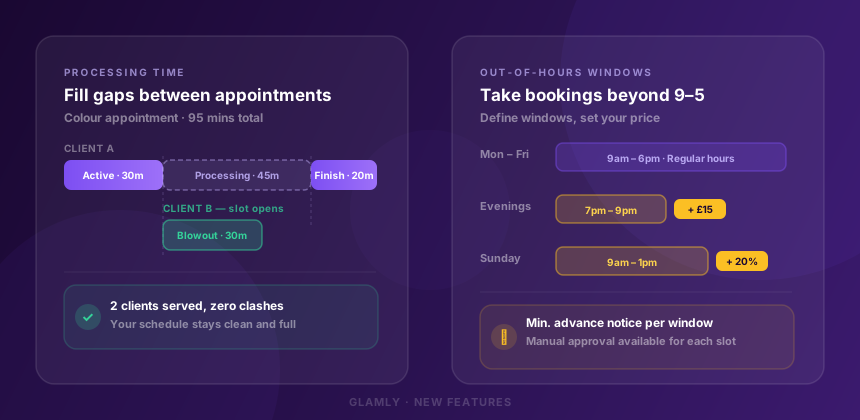
We've just shipped two features that have been on the list since we launched — and both of them came directly from conversations with Glamly users.
If you do colour work, chemical treatments, or any service where the client sits under a dryer or waits between stages, the first one is for you. If you've ever wanted to take bookings outside your normal working hours — early mornings, evenings, weekends — without giving those slots away at your standard rate, the second one is too.
Processing Time
Some services don't run end-to-end without a break. A full colour needs 45 minutes developing time. A lash lift sits for 20 minutes. A keratin treatment needs time to set. During that window, you could be doing another client — but only if your calendar actually reflects that.
Without processing time in your booking software, you had two bad options: pad your service duration and block out a full hour-plus of “just in case” time, or run back-to-back and hope it all goes smoothly. Neither is ideal.
With Glamly's processing time, each service can now have three distinct time segments:
- Active time — the hands-on portion at the start
- Processing time — the window where the client waits (developing, setting, drying)
- Finish time — the final hands-on wrap-up (rinse, tone, style)
When a client books a service with processing time, your calendar blocks the full appointment correctly but shows you when the processing window opens up. You can use that window to start a shorter service with another client — a blowout, a tint, a treatment — and Glamly makes sure those slots don't overlap where they shouldn't.
Processing Time
Go to Settings → Services, open any service, and you'll see a new “Processing time” option. Enable it, set your active, processing, and finish durations, and save. The total duration shown to clients is the full appointment length — the breakdown is just for your calendar.
Out-of-Hours Booking Windows
Your working hours are set in Glamly because that's when you're reliably available. But most beauty professionals get requests outside those hours all the time — early Saturday mornings, Sunday afternoons, late evenings. The usual answer is a DM, a back-and-forth, and a manual entry in the diary.
Out-of-hours windows let you formalise that. You define specific time windows outside your regular hours — say, Sunday 9am–1pm, or Monday evenings 7–9pm — and Glamly opens those slots for online booking automatically.
The key part: you can price them differently. Out-of-hours bookings often warrant a premium — you're giving up personal time, and clients who need Sunday slots usually expect to pay for the convenience. You can set a flat surcharge, a percentage on top of the service price, or configure it per service if some treatments are more time-intensive to offer outside hours.
There's also a minimum advance notice setting per window. If you need at least 48 hours to prepare for an out-of-hours booking — to get supplies, rearrange your day, or just have enough notice — you can enforce that. Clients can't book an out-of-hours slot within that window.
And if you want a second line of control, there's a manual approval option too. With that on, out-of-hours bookings go to Pending first — even if instant booking is enabled for your regular hours — so you confirm each one before it locks in.
Out-of-Hours Windows
Go to Settings → Hours and scroll to the Out-of-Hours section. Toggle it on, add your windows with the days and times you want available, then choose your pricing — flat surcharge, percentage, or per-service override. You can also set minimum advance hours and require manual approval per window.
Why these two features together?
On the surface they solve different problems — one is about calendar efficiency, the other is about availability. But they point at the same thing: making sure your time is working as hard as you are.
Processing time squeezes more value out of the hours you already work. Out-of-hours windows let you monetise the requests you're currently losing to DMs or turning away entirely. Together, they're about giving you a booking setup that reflects how you actually work — not a simplified version of it.
Both features are live now for all Glamly users. No plan upgrade required.