Booking questions
Ask clients a few extra questions at checkout, like how they heard about you or whether they have any allergies, and send a consultation form based on their answer.
Adding a question
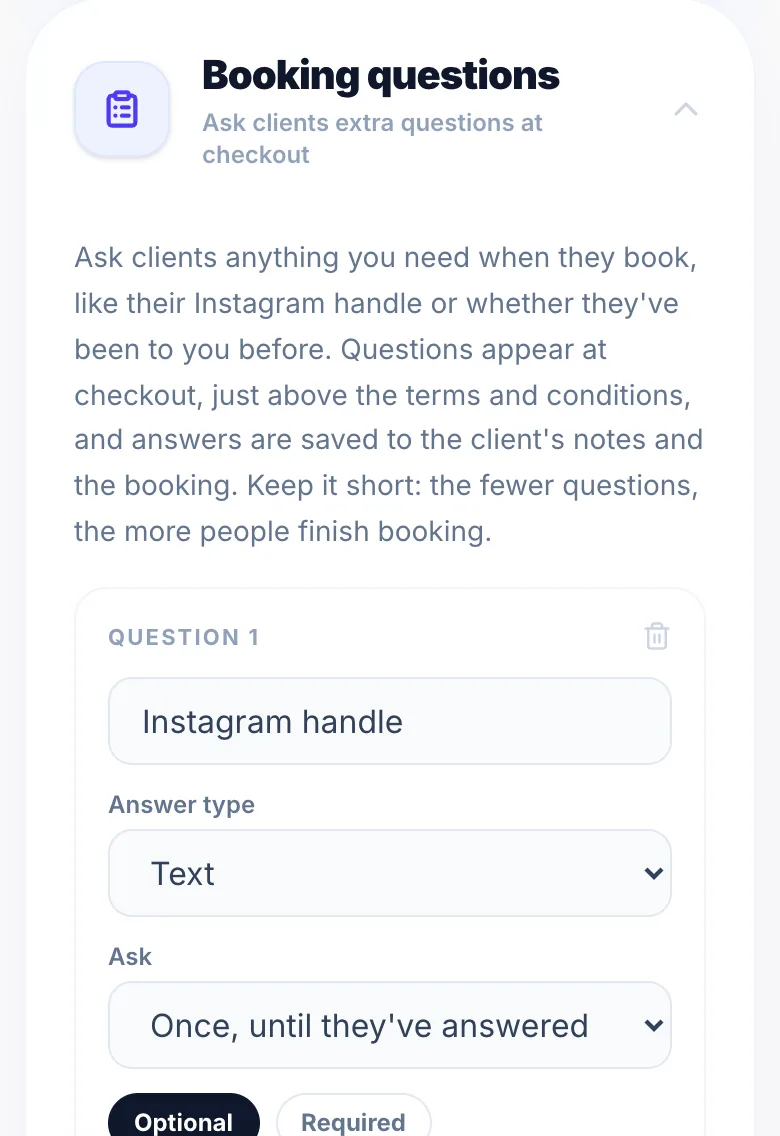
Go to Settings → My Booking Link and find Booking questions. Tap Add question, or use a ready-made one such as 'How did you hear about me?'. You can have up to 10.
Answer types
Text, Phone number, Yes / No, Dropdown or Tick boxes. For Dropdown and Tick boxes, put one choice on each line. Mark each question Required or Optional.
How often to ask
- Every booking
- Once, until they've answered
- New clients only
Sending a form from an answer
For Yes / No questions, tick 'Send a consultation form based on the answer', choose whether a Yes or a No sends it, and pick the form. It's sent as well as any forms linked to the treatments they booked. For example, 'Are you pregnant?' → Yes sends your pregnancy consent form.
Where the answers go
Answers are saved on the booking and on the client's profile, including as a client note, so you'll see them next time too.
Version 1.0 · Updated 22 Nov 2026
Was this helpful?
More in Consultation Forms
See all- How clients complete the formClients are prompted to complete the form via the manage page link in their WhatsApp or email booking confirmation.
- Viewing form responses in the dashboardOnce a client completes their consultation form, all responses are visible in the booking detail panel.
- How often clients fill in a form (and re-confirmations)Every consultation form has a Re-request frequency that decides how often a client is asked to fill it in.
- Product & Batch RecordsProduct & Batch Records let you log which products were used during a treatment — including the batch number and date opened.
Still stuck?
Message us and a real person will get back to you. If you're logged in, Settings → Contact Us is quickest.
Not on Glamly yet?
Bookings, deposits, reminders and payments in one app for beauty pros. Try it free for 30 days — no card needed.