The checkout hold and Calendar Holds
Two different things both 'hold' a slot, and they're easy to mix up: the short timer while a client checks out, and the Calendar Holds setting for bookings waiting for your approval.
The checkout hold (automatic)
When a client picks a time, it's held for them for 10 minutes while they fill in their details, with a countdown clock on screen. Nobody else can book it in that time. If the timer runs out, they go back to the start and the slot is free again.
When they go to pay online, the hold is stretched to 30 minutes, so payments that open another app or page (like Klarna or a bank app) have time to finish. If the payment fails, it goes back to the original time.
Calendar Holds (your setting)
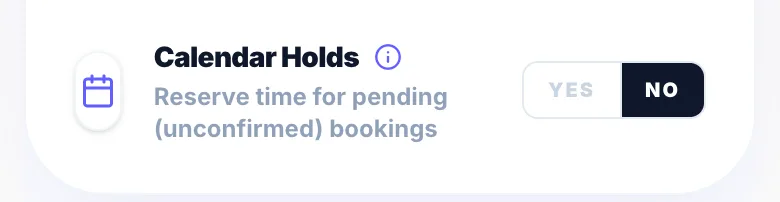
Go to Settings → Rules → Schedule Limits and find Calendar Holds ('Reserve time for pending (unconfirmed) bookings'). With it on, bookings waiting for your approval block their slot so nobody else can book it while you decide. With it off, the slot stays bookable until you approve.
Which one do I need?
The checkout hold is always on and you can't change it. Calendar Holds only matters if you approve some bookings yourself, for example with manual approval, new client approval or 'Approve short-notice bookings'.
Version 1.0 · Updated 22 Nov 2026
Was this helpful?
More in Bookings & Calendar
See all- Creating recurring appointmentsRecurring appointments let you book a repeating series for a client in one go — perfect for regular colour clients, weekly blowdries, or monthly treatments.
- Managing a recurring seriesAfter a recurring series is created, you can manage it from the Recurring hub — accessible from the main Bookings Hub on your dashboard.
- Calendar date picker on your public booking pageWhen clients visit your public booking page and select a service, they are shown a full monthly calendar to choose their appointment date.
- How the booking flow worksUnderstanding how clients book with you helps you set things up correctly and know what to expect at each step.
Still stuck?
Message us and a real person will get back to you. If you're logged in, Settings → Contact Us is quickest.
Not on Glamly yet?
Bookings, deposits, reminders and payments in one app for beauty pros. Try it free for 30 days — no card needed.