Creating a consultation form
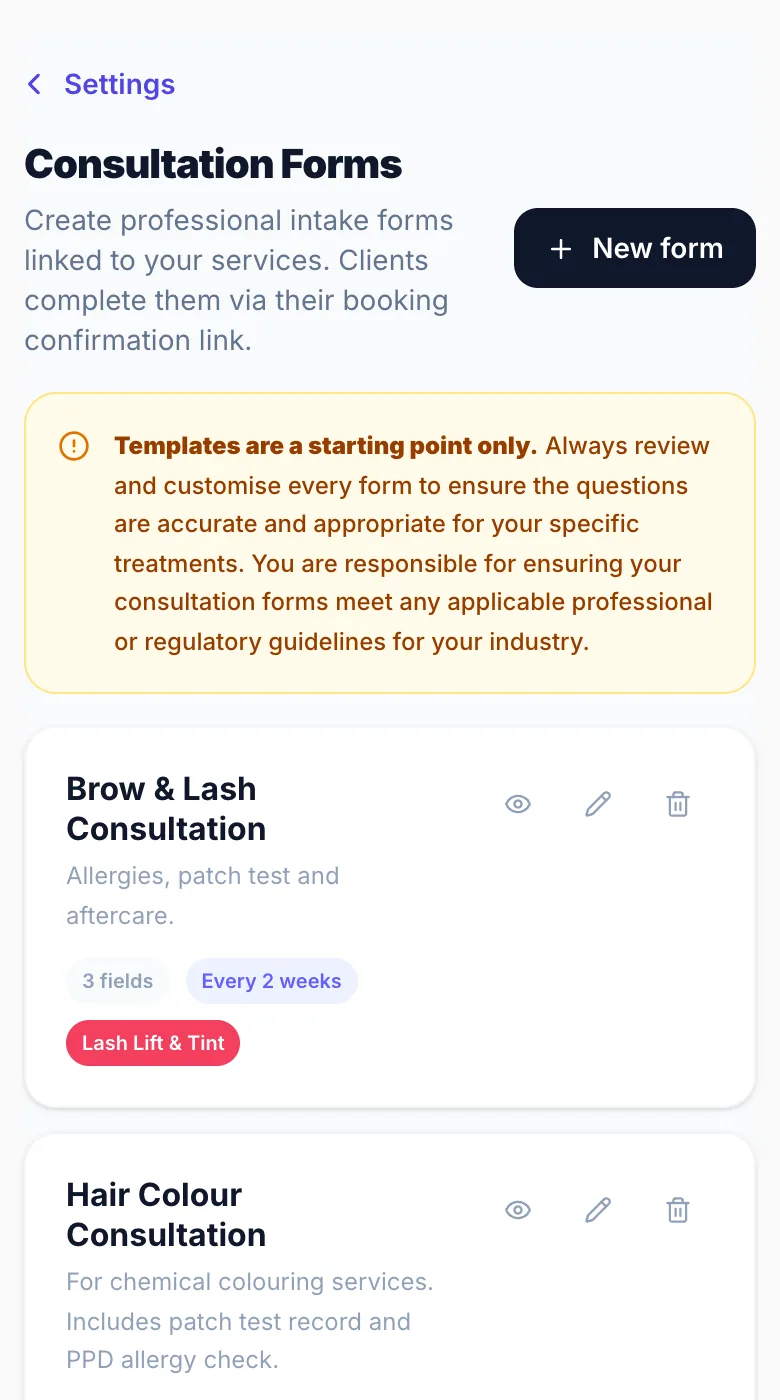
Build form templates in Settings → Consultation Forms. Tap 'New form' to get started.
Ready-made templates
Glamly includes templates for: General Beauty, Hair Colour, Lash Extension, Skin Treatment, Nail Extensions, Brow Lamination & Tint, Waxing, Massage & Holistic Therapy, Spray Tan, Microblading / Semi-Permanent Makeup, Aesthetics & Injectables, Tattoo, Piercing, Dermal Filler, Skin Booster, Fat Dissolving, and Teeth Whitening. Each pre-fills the most relevant questions for that treatment — customise from there.
Building from scratch
Choose 'Blank' to start from an empty form and add each question manually.
Field types
Text (short answer) · Long text (paragraph answer) · Yes / No · Yes / No with follow-up detail · Dropdown (select one from a list) · Multi-select · Patch test (Yes/No + date recorded) · Signature — Draw (client draws their signature) · Signature — Type (client types their name as a signature) · Declaration (required consent checkbox, always placed last).
Required vs optional questions
Toggle each field as required or optional. Required questions must be answered before the form can be submitted.
Re-request frequency
Choose how often returning clients are asked again: Always required (every visit), Once only (never re-request), Every 2 weeks, Every month, Every 3 months, Every 6 months, Every year or Every 2 years.
Allow re-confirmations
This toggle appears once you set a frequency. When on (the default), returning clients within the window get a short re-confirmation — they review their previous answers, confirm nothing has changed, and re-sign. Turn it off if you always want clients to fill in the full form fresh, regardless of the window — useful for forms where fresh answers are medically or legally important, such as a detailed colour record or medical history form.
Linking to services
At the bottom of the form editor, tick the services (and any add-ons) this form applies to. A service can have more than one form linked. Save — clients booking those services will be prompted automatically.
Previewing a form
In the form list, tap the eye icon on any form to preview exactly how it will appear to the client before linking it to a service.
Version 1.0 · Updated 17 Nov 2026
Was this helpful?
More in Consultation Forms
See all- How clients complete the formClients are prompted to complete the form via the manage page link in their WhatsApp or email booking confirmation.
- Viewing form responses in the dashboardOnce a client completes their consultation form, all responses are visible in the booking detail panel.
- How often clients fill in a form (and re-confirmations)Every consultation form has a Re-request frequency that decides how often a client is asked to fill it in.
- Product & Batch RecordsProduct & Batch Records let you log which products were used during a treatment — including the batch number and date opened.
Still stuck?
Message us and a real person will get back to you. If you're logged in, Settings → Contact Us is quickest.
Not on Glamly yet?
Bookings, deposits, reminders and payments in one app for beauty pros. Try it free for 30 days — no card needed.