Duplicate clients: how online booking recognises clients, and how to merge two profiles
When your existing clients book online, Glamly matches them to the profile you already have, so they don't end up listed twice. If a duplicate does slip through, you can merge the two in a few taps.
How your booking page recognises a client
When someone books, Glamly checks your client list in this order:
- Their email address.
- If there's no match, their mobile number. It matches however the number is written, so 07…, +44… and 0044… all count as the same number.
- If the saved profile has no email and no mobile, their first name and surname. Capital letters don't matter, so 'amy smith' matches 'Amy Smith'.
When there's a match, the booking goes straight into their existing profile, with their history and notes.
When it's someone new
If Glamly can't find them, your booking page shows 'Looks like you're new here' and a new client profile is created when they book.
The best way to avoid duplicates
Save a mobile number on every client profile, plus their email if you have it. Clients with neither can only be matched by name, so if they book with a nickname (say 'Becky' instead of 'Rebecca') they'll show up as a new client.
Merging two profiles
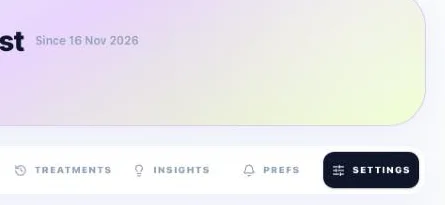
Go to Clients and open the profile you want to keep. Tap the Settings tab (the last one, after Details, Notes, Photos, Treatments, Insights and Prefs).
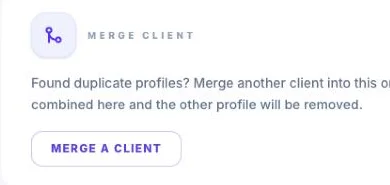
Scroll down to the Merge Client card and tap Merge a Client.
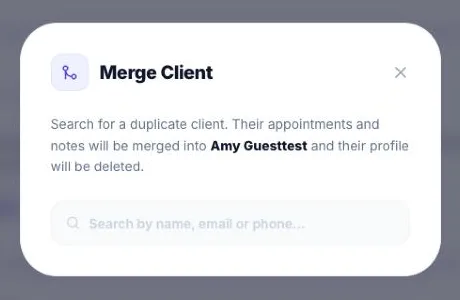
Search for the duplicate by name, email or phone number, and tap it.
The Confirm Merge screen shows which profile is kept ('Keep this profile ✓ Survives') and which is removed ('Remove this profile — Deleted'). If they're the wrong way round, swap them here. Then tap Confirm Merge.
Finding all your duplicates at once
Go to Settings → Duplicate Clients (under Account), or tap Find duplicates at the top of your Clients page, then tap Find duplicate clients. Glamly lists any profiles that look like the same person:
- Very likely the same person: the same name and the same email or mobile.
- Check first: the same email or mobile but different first names (often a mum and daughter sharing a mobile), or the same full name only.
For each one, tap the profile you want to keep and tap Merge. Glamly shows you what will happen and asks you to confirm before anything changes. You can also tick several and tap Merge selected. If two profiles really are different people, tap Not the same person and they won't be suggested again.
What happens when you merge
Bookings, notes, forms, reviews and history from the removed profile move across to the one you kept. Any details the kept profile is missing, like an email, mobile, date of birth, address, patch test or inspiration photos, are filled in from the other one. Loyalty points and stamps are added together, and if either profile said no to marketing, the merged one says no. The removed profile is then deleted. A merge can't be undone, so check you've picked the right two first.
Version 1.1 · Updated 20 Nov 2026
Was this helpful?
More in Clients
See all- Adding notes to a clientUse client notes for anything relevant to their appointments: allergies, preferences, medical notes.
- Client brief: know your client before they arriveThe client brief shows you everything about your next client in one tap, so you're ready before they walk in.
- Requiring full payment from a specific clientIf a client has a history of no-shows or late cancellations, you can make them always pay in full when they book.
- Special prices for individual clientsGive a client a permanent special price: always free, or a set discount every time they book.
Still stuck?
Message us and a real person will get back to you. If you're logged in, Settings → Contact Us is quickest.
Not on Glamly yet?
Bookings, deposits, reminders and payments in one app for beauty pros. Try it free for 30 days — no card needed.