Exporting your business data
Data Exports (Settings → Data Exports) lets you download a copy of your clients, appointments, or services at any time. All exports are available in CSV, XLSX, and JSON formats.
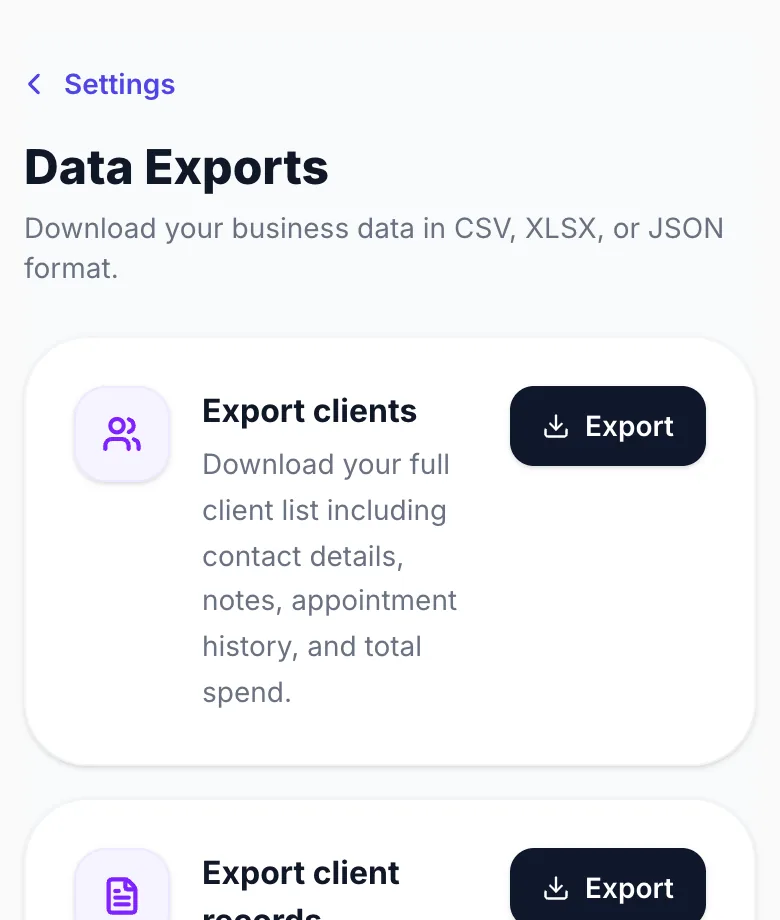
Export clients
Downloads your full client list including first name, last name, email, phone, pronouns, address, total appointments, total no-shows, total spend, notes, and the date the client was added. Useful for backups, migrating to another system, or mail-merge campaigns.
Export appointments
Downloads your appointment history. Before the file downloads you'll see checkboxes to select which statuses to include — Confirmed, Completed, No Shows, Cancelled, and Pending. Tick the ones you need, then choose your format. Each row includes the date, time, client name, service, duration, price, status, deposit paid, notes, and location type.
Export services
Downloads your full services menu including name, category, price, duration, description, deposit settings, and whether the service is hidden. Useful for reviewing your menu in a spreadsheet or setting up a new account.
File formats
CSV — opens in Excel, Google Sheets, or any spreadsheet app. XLSX — Excel format, ready to open directly. JSON — raw data format, useful for developers or importing into other systems.
Your data is always yours
You can export at any time with no restrictions. If you ever decide to leave Glamly, take a full export of all three areas before you cancel and you'll have everything you need.
Version 1.0 · Updated 17 Nov 2026
Was this helpful?
Still stuck?
Message us and a real person will get back to you. If you're logged in, Settings → Contact Us is quickest.
Not on Glamly yet?
Bookings, deposits, reminders and payments in one app for beauty pros. Try it free for 30 days — no card needed.