Re-booking a client in 4, 6 or 8 weeks
Re-book sets up a client's next appointment from the one they've just had, so you can book their 6-week infill before they leave.
How to re-book
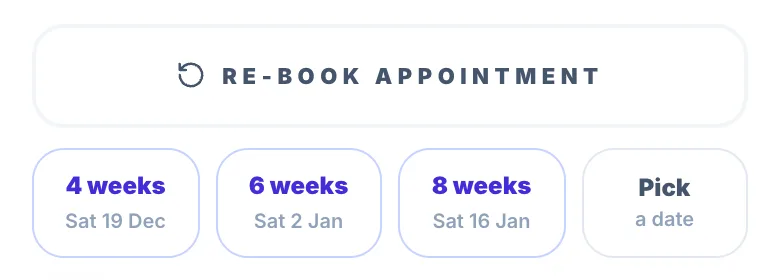
Open the booking from your calendar or bookings list and tap 'Re-book appointment'. Choose 4 weeks, 6 weeks or 8 weeks. Each one shows the date it lands on, so you can see it before you tap. To choose a different date, tap 'Pick a date'.
What's filled in for you
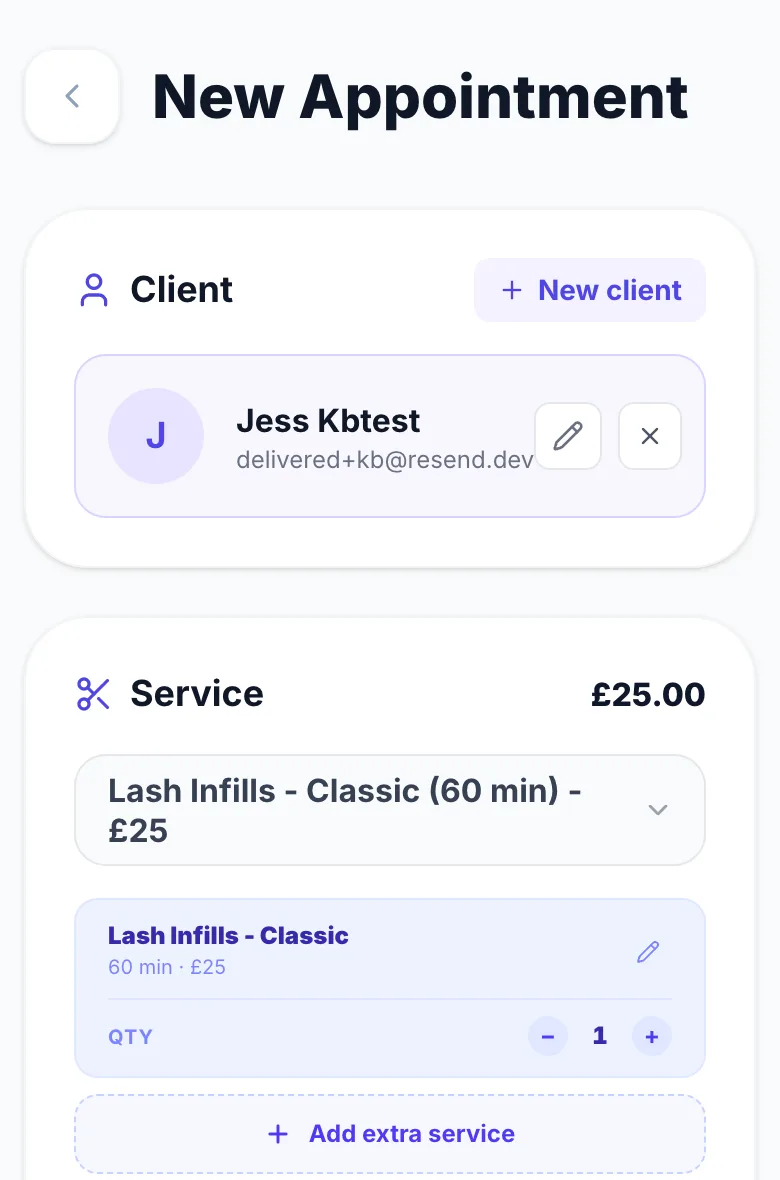
The new booking screen opens with the client, their treatments and extras, and where the appointment is (your studio or at the client's) already chosen, on the date you picked. Pick a time and book it as normal. If you're closed that day, it opens on your next open day instead.
How the date is worked out
The weeks are counted from the date of the appointment you're re-booking, not from today. So re-booking last Saturday's lash infill for 6 weeks lands on a Saturday too. If that would put the new date in the past, it counts from today instead.
Which bookings have Re-book
Confirmed, completed, cancelled, declined and no-show bookings all have 'Re-book appointment'. It isn't available while your account is locked, for example after your free trial ends.
Clients who'd rather book themselves
To remind clients to book their next visit online, switch on Rebooking Reminders. See 'Marketing automations'.
Version 1.0 · Updated 24 Nov 2026
Was this helpful?
More in Bookings & Calendar
See all- Creating recurring appointmentsRecurring appointments let you book a repeating series for a client in one go — perfect for regular colour clients, weekly blowdries, or monthly treatments.
- Managing a recurring seriesAfter a recurring series is created, you can manage it from the Recurring hub — accessible from the main Bookings Hub on your dashboard.
- Calendar date picker on your public booking pageWhen clients visit your public booking page and select a service, they are shown a full monthly calendar to choose their appointment date.
- How the booking flow worksUnderstanding how clients book with you helps you set things up correctly and know what to expect at each step.
Still stuck?
Message us and a real person will get back to you. If you're logged in, Settings → Contact Us is quickest.
Not on Glamly yet?
Bookings, deposits, reminders and payments in one app for beauty pros. Try it free for 30 days — no card needed.