Setting up reviews
Glamly has two review features: a Google review prompt that gates feedback after appointments, and Glamly Reviews which display verified client reviews directly on your booking page. Both are managed in Settings → Reviews.
Google review prompt
The prompt automatically shows clients a 5-star rating on their booking management page after their appointment. After rating, every client is invited to leave a Google review — Google's policies require that all clients are asked, not just happy ones. Written feedback always stays private.
Step 1 — Get your Google review link
Log in to Google Business Profile at business.google.com. Click 'Ask for reviews' and copy your unique review link. It will start with https://g.page/r/.
Step 2 — Add it in Settings → Reviews
Go to Settings → Reviews, scroll to 'Google review prompt', paste your link into the field, toggle 'Show review prompt to clients' on. Use the 'Test link' button to confirm it opens your Google review page correctly.
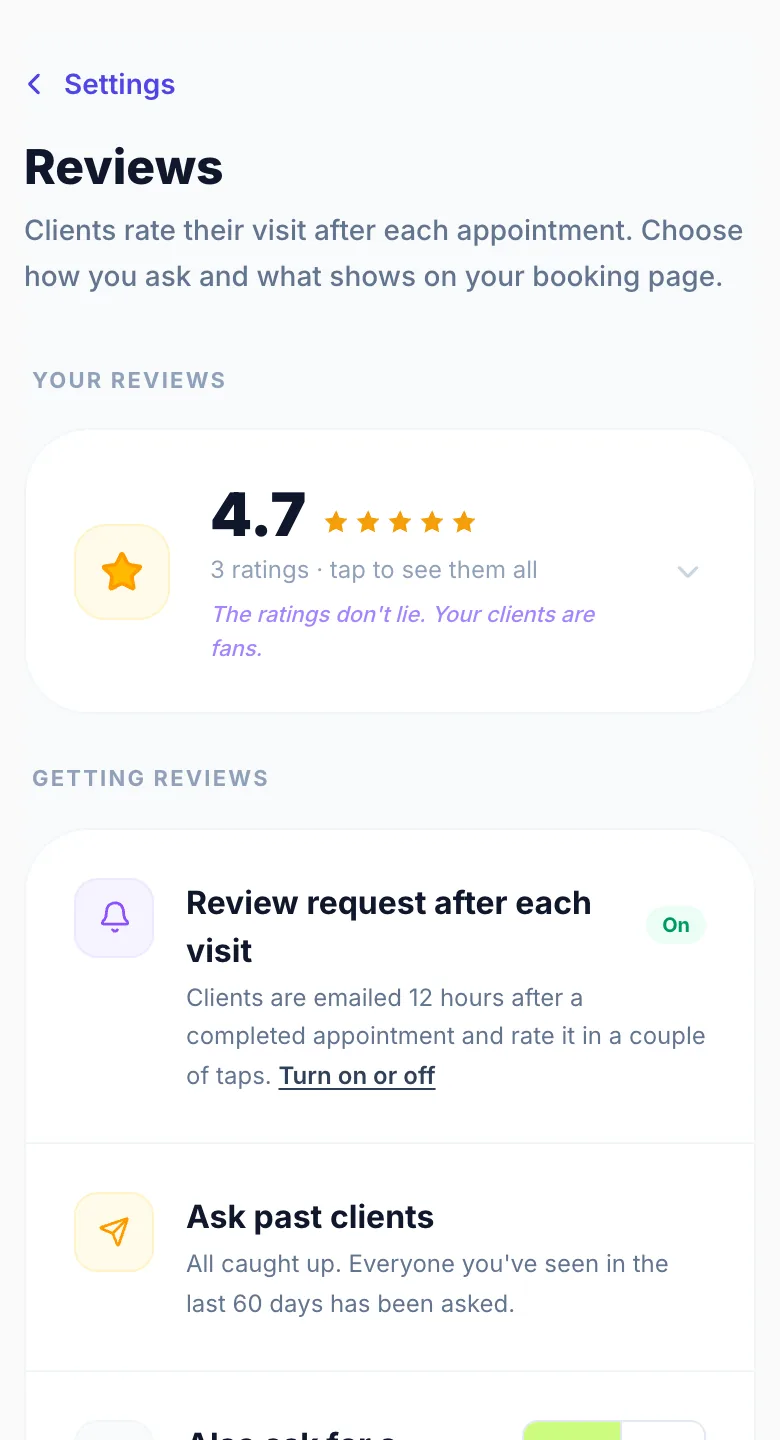
Step 3 — Enable review request notifications
Go to Settings → Notifications → Review Requests. Turn on Email and/or WhatsApp. Glamly will automatically send clients a review nudge 12 hours after their appointment ends (completed appointments only).
Glamly Reviews on your booking page
Clients who rate 4 or 5 stars and leave a written comment appear as 'Verified client' reviews on your public booking page. Toggle 'Show in Reviews tab' on in Settings → Reviews. You can also enable 'Show star rating per service' to display an average rating badge on each service card that has reviews.
Connect your Google listing
To display your existing Google reviews on your booking page, go to Settings → Reviews → On your booking page → Google Reviews, tap 'Find my Google listing', and connect your listing. Then go to Settings → My Booking Link → Display Controls and toggle 'Google Reviews tab' on.
Reading your ratings and feedback
Every rating is saved against its appointment. To read them, go to Settings → Business Insights and scroll to Client Reviews. 4 and 5 star reviews come first, then private feedback (1 to 3 stars), each with the client's name, service and date, newest first.
Refreshing your Google reviews
Your Google reviews on the booking page refresh on their own. To pull in a new review straight away, go to Settings → Reviews and tap 'Refresh reviews'.
Version 1.0 · Updated 17 Nov 2026
Was this helpful?
More in Reviews
See allStill stuck?
Message us and a real person will get back to you. If you're logged in, Settings → Contact Us is quickest.
Not on Glamly yet?
Bookings, deposits, reminders and payments in one app for beauty pros. Try it free for 30 days — no card needed.