Issuing and managing vouchers manually
You can issue a gift voucher yourself from the dashboard, for example when a client buys one in the salon or pays by bank transfer.
Issuing a voucher yourself
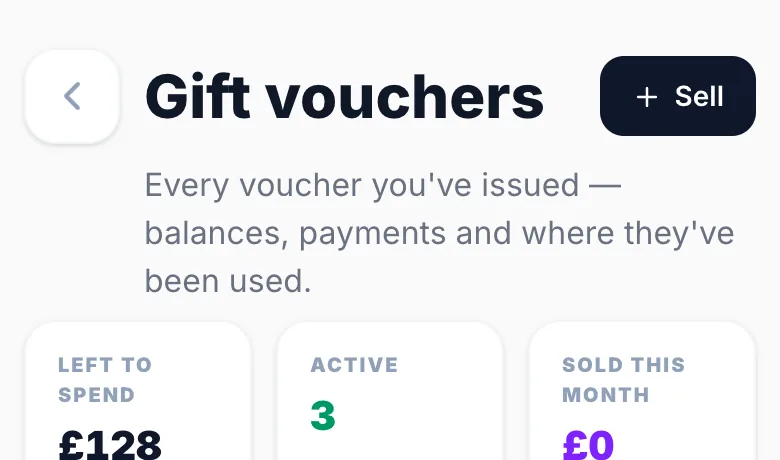
Go to Settings → Gift Vouchers and tap Manage issued vouchers. On the Gift vouchers page, tap Sell.
Filling it in
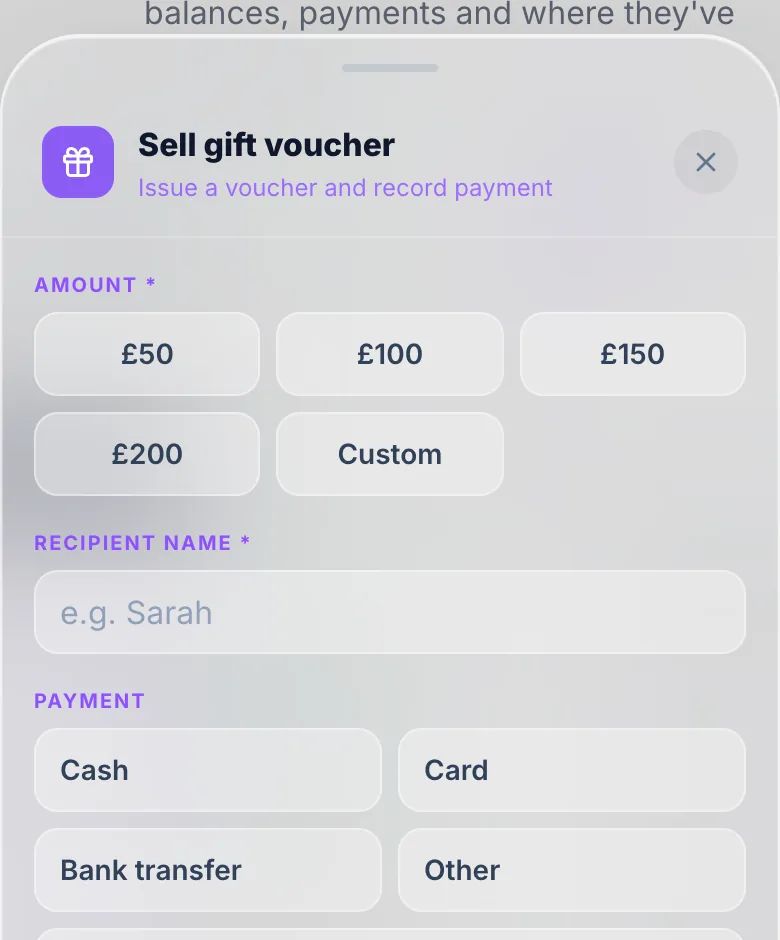
- Choose an amount, or Custom.
- Enter the recipient's name.
- Choose how it was paid: Cash, Card, Bank transfer or Other. Or choose Send a payment link and they pay online.
- Add the recipient's email to send them the code, and a personal message if you like.
The voucher's expiry comes from your Voucher expiry setting in Settings → Gift Vouchers.
Viewing all vouchers
The Gift vouchers page lists every voucher, bought online or issued by you, with what's left to spend. Filter by Active, Used, Expired or Refunded, or search by name, email or code.
Voucher statuses
- Active: has a balance and hasn't expired.
- Part used: some of it has been spent.
- Used: fully spent.
- Expired: past its expiry date.
- Refunded: the payment was refunded.
Copying a code
Tap the code on any voucher to copy it, handy for sending to a client yourself.
Version 1.1 · Updated 17 Nov 2026
Was this helpful?
More in Gift Vouchers
See all- Setting up gift vouchersGift vouchers let clients purchase a credit towards any booking.
- How clients purchase and redeem vouchersClients purchase vouchers on your public gift page and receive a unique code by email.
- Sending a voucher on a chosen dateClients buying a voucher online can choose when it arrives, so it lands on a birthday or Christmas morning rather than the day they buy it.
Still stuck?
Message us and a real person will get back to you. If you're logged in, Settings → Contact Us is quickest.
Not on Glamly yet?
Bookings, deposits, reminders and payments in one app for beauty pros. Try it free for 30 days — no card needed.