Sending a payment link
Payment links let you collect an outstanding balance from a client by email — without them needing to be physically present. The client receives a branded email with a secure link, pays by card online, and receives an automatic receipt. The money goes straight to your Stripe account.
Before you start
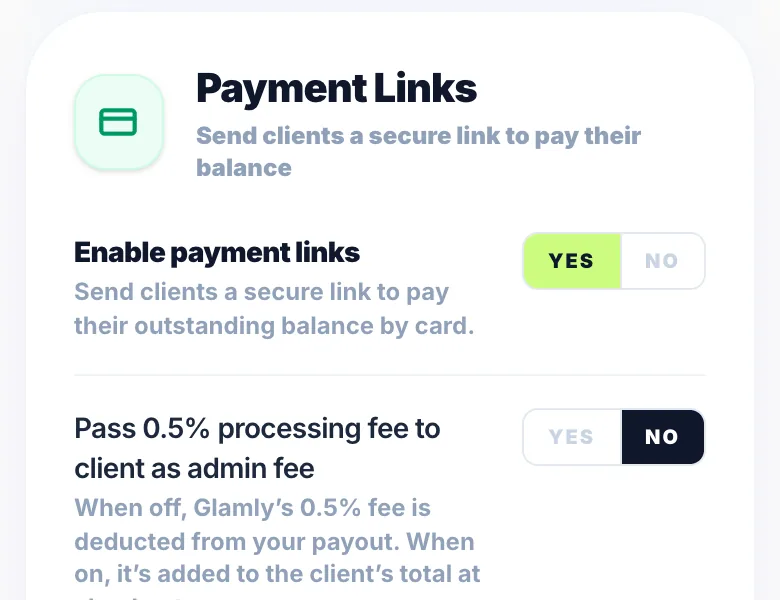
Payment links require Stripe to be connected (Settings → Payments) and the payment links feature to be enabled. Go to Settings → Payments, scroll to Payment Links, and toggle 'Enable payment links' on.
Sending a link
Open the booking panel for the appointment. Scroll to the Payment section and tap 'Send payment link'. Enter the client's email address and tap Send. Glamly emails the link instantly — the client can pay from any device.
What the client sees
The client receives a Glamly-branded email with the service name, date, and amount due. They tap 'Pay now', optionally add a tip, enter their card details, and pay. Once confirmed they see a success screen and receive an emailed receipt.
Tracking payment
The booking panel shows a live activity log. Once the client pays, the entry updates to 'Payment link paid' with a timestamp, the appointment payment status updates to Paid, and the activity log records the payment.
Resending the link
If the client didn't receive the email or needs it again, tap 'Resend' in the booking panel activity. This re-sends the same link — no new link is created and the expiry date doesn't reset.
Cancelling the link
To revoke a link before payment, tap 'Cancel' in the booking panel activity. The link is immediately invalidated and a cancellation email is sent to the client. You can then send a new link if needed.
Link expiry
Payment links expire after 7 days. If the link has expired before the client pays, open the booking panel and send a new one — the expired link is automatically blocked.
Version 1.0 · Updated 17 Nov 2026
Was this helpful?
More in Payment Links
See allStill stuck?
Message us and a real person will get back to you. If you're logged in, Settings → Contact Us is quickest.
Not on Glamly yet?
Bookings, deposits, reminders and payments in one app for beauty pros. Try it free for 30 days — no card needed.