Setting your opening hours
Opening hours define which days and times clients can book. Slots outside these hours don't appear on your public booking page.
Where to set them
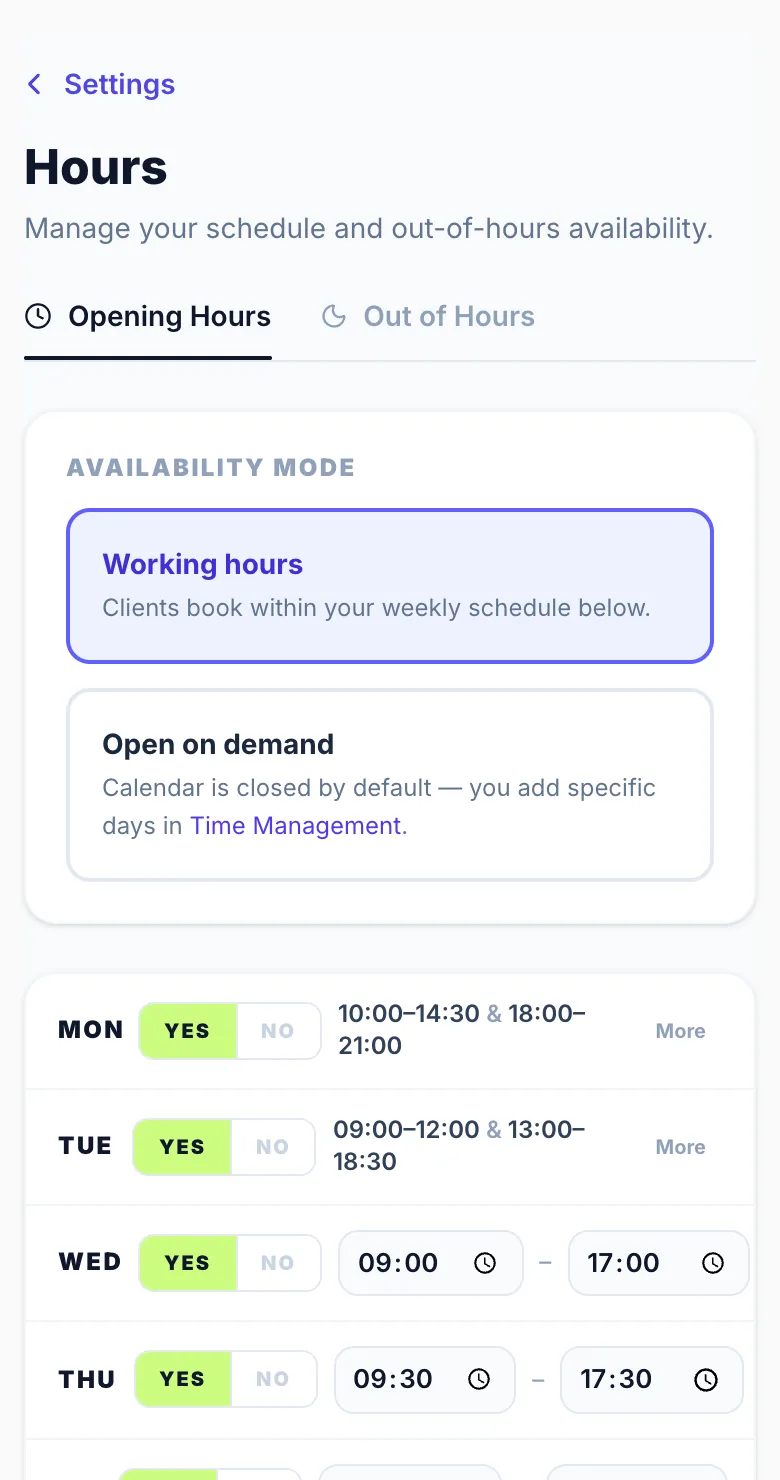
Go to Settings → Opening Hours. Toggle each day on or off and set your start and end times.
Different hours per day
Each day can have different hours. For example, shorter hours on Saturdays and closed on Sundays.
Tip
Set your end time earlier if you need a buffer at the end of your day — for example, if your last slot is 4pm but you close at 5pm, set your hours to end at 4pm.
Showing or hiding your hours on your booking page
Your booking page shows your hours in two places, and you can hide each one separately in Settings → My Booking Link → Display Controls:
- Opening hours (home page): the open or closed status and next opening time under your photos.
- Opening hours (About section): the full day-by-day table in the About tab.
Both are on to start with, and changes save straight away. Hiding them only changes what clients see. Your hours still decide which times can be booked.
Irregular hours
If your hours change from week to week, hide the About table but keep the home page status on, so clients still see whether you're open now.
Version 1.0 · Updated 17 Nov 2026
Was this helpful?
More in Business Rules
See all- Days off and time offBlock out dates or times when you're not available, without changing your regular opening hours.
- Opening hours vs when you can be bookedYour opening hours are your usual week.
- Split shifts and breaksBuild gaps into your working day so clients can't book into them.
- Maximum bookings per dayLimit how many appointments you accept on any single day to prevent an overwhelming schedule.
Still stuck?
Message us and a real person will get back to you. If you're logged in, Settings → Contact Us is quickest.
Not on Glamly yet?
Bookings, deposits, reminders and payments in one app for beauty pros. Try it free for 30 days — no card needed.