Syncing your bookings to your calendar app
Glamly generates a private live feed of your appointments that any calendar app can subscribe to. Once subscribed, new and updated bookings appear automatically — no manual syncing, no app needed. Your appointments are also cached locally on your device so they're visible even without an internet connection.
Where to find it
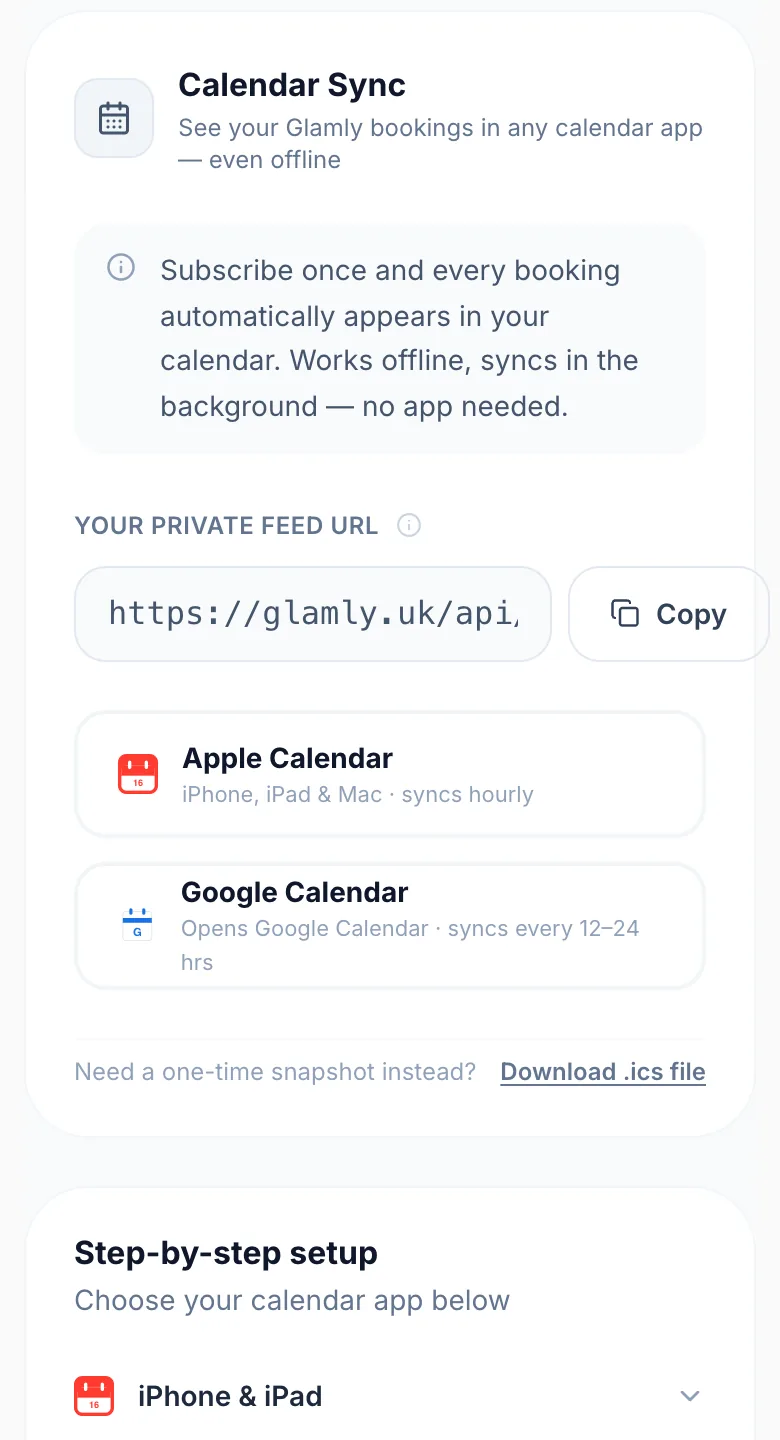
Go to Settings → Integrations. Glamly automatically generates a private, secure feed URL the first time you visit this page.
iPhone & iPad (quickest method)
Open Settings → Integrations on your iPhone and tap the Apple Calendar button. Safari will ask to open in Calendar — tap Subscribe, then tap Find on the next screen, then tap Subscribe again to confirm. Your bookings will appear in your Calendar app and sync hourly.
Google Calendar
Copy your feed URL from Settings → Integrations, or tap the Google Calendar button which opens Google Calendar directly. On desktop, click the '+' next to 'Other calendars' → 'From URL', paste your feed URL and click Add calendar. Note: Google controls the sync frequency and typically updates every 12–24 hours.
Mac Calendar
On your Mac, click the Apple Calendar button on the Integrations page — your browser will offer to open Calendar. Click Subscribe, give it a name, set Auto-refresh to Every Hour, and click OK.
Outlook
In Outlook on the web, go to Calendar → Add calendar → Subscribe from web. Paste your feed URL and click Import.
How often it updates
Apple Calendar (iPhone/Mac) and Outlook sync approximately every hour. Google Calendar syncs every 12–24 hours — this is a Google limitation and cannot be changed. For the most up-to-date offline view, Apple Calendar is recommended.
What appears in your calendar
Each event shows the client name and service. Confirmed and pending bookings appear; cancelled and no-show bookings are excluded and will disappear on the next sync.
Regenerating your URL
If your URL is ever shared accidentally, go to Settings → Integrations and click 'Regenerate URL'. The old URL stops working immediately — any subscribed calendar apps will need to be re-subscribed with the new URL.
Version 1.0 · Updated 17 Nov 2026
Was this helpful?
More in Integrations
See all- How clients add their booking to their calendarAfter completing a booking on your public page, clients are shown calendar options directly on the confirmation screen — no extra steps needed.
- Adding your booking page to your own websitePut your Glamly booking page on your own website so clients book without leaving it.
Still stuck?
Message us and a real person will get back to you. If you're logged in, Settings → Contact Us is quickest.
Not on Glamly yet?
Bookings, deposits, reminders and payments in one app for beauty pros. Try it free for 30 days — no card needed.