Your Earnings page
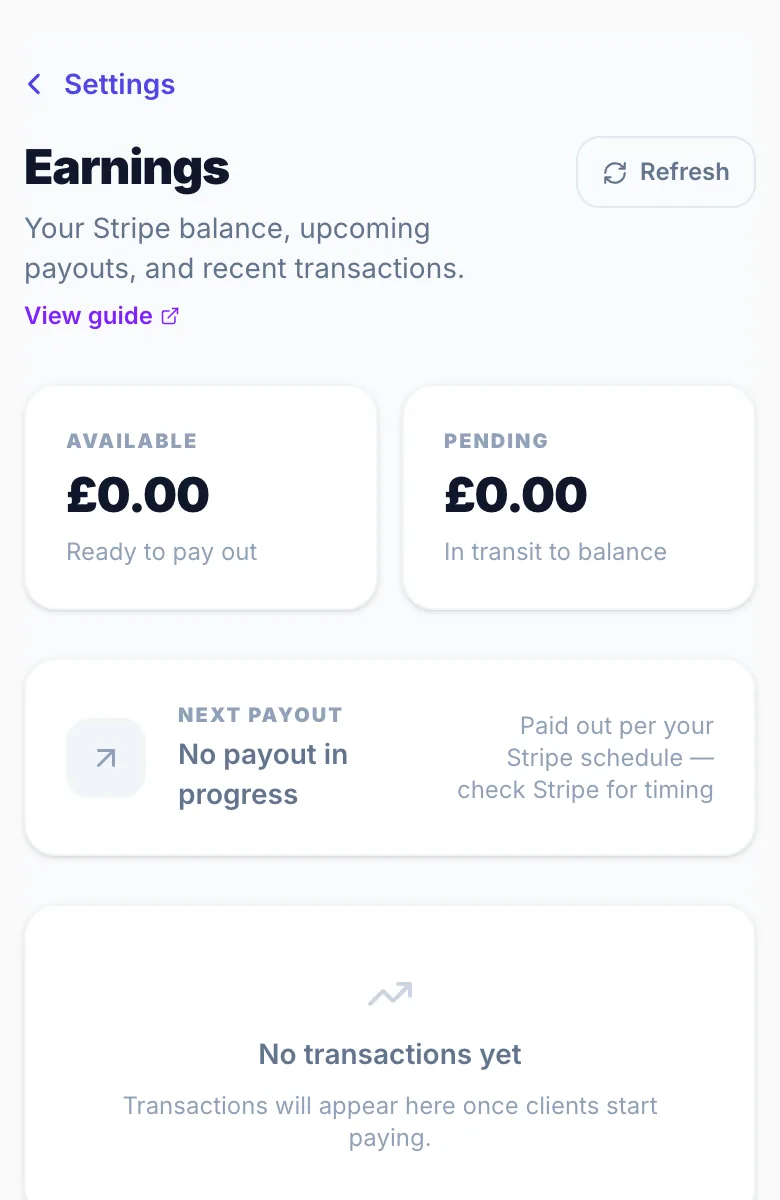
Earnings shows the money you've taken through Glamly: your Stripe balance, your next payout and every transaction.
Where to find it
Go to Settings → Earnings. If it's not in the menu, your Stripe account isn't fully connected yet. Finish setting it up in Settings → Payments and Earnings appears.
Your balance
- Available: money that has settled and is ready to pay out. Stripe adds it to your next payout automatically, so there's nothing to request.
- Pending: recent card payments Stripe is still processing, usually for 2 to 7 days. Once cleared it moves to Available.
Next payout
Shows the amount and expected arrival date when Stripe is preparing a payout or has sent one. Pending means Stripe is preparing it. In Transit means it's on its way to your bank.
Money in your balance but no payout showing
The payout card only fills in once Stripe has a payout in progress. If you're between payout dates or your balance is below Stripe's minimum, nothing shows yet. Tap 'Open Stripe' to see your schedule.
Recent payouts and transactions
Recent payouts lists payouts to your bank, newest first, with the amount, status and date. Recent transactions lists payments, refunds and fees, and you can search them. Fees include Stripe's card fee and, where it applies, Glamly's 0.5% processing fee. See 'Glamly's processing fee'.
When you get paid
Your payout schedule (daily, weekly or monthly) is set in Stripe, not Glamly. Tap 'Open Stripe' to check or change it.
What else you can do in Stripe
Earnings is a summary. Stripe holds your full records. Tap 'Open Stripe' to:
- Change your payout schedule
- Download full transaction exports and statements
- Update your bank details
- See your full payout history
- Find your tax documents
Version 1.0 · Updated 17 Nov 2026
Was this helpful?
More in Deposits & Payments
See all- Payment processing fee credit systemWhen a full payment is refunded, Glamly automatically returns the 0.5% payment processing fee to your credit balance — so you're never charged for a transaction that didn't happen.
- Setting up depositsDeposits protect your time by making sure clients are committed before their appointment.
- How deposits work for clientsWhen a client books a service that needs a deposit, they pay it by card before the booking is confirmed.
- Refunding a depositIf a booking is cancelled or a client is owed money back, you can issue a refund from the booking detail panel.
Still stuck?
Message us and a real person will get back to you. If you're logged in, Settings → Contact Us is quickest.
Not on Glamly yet?
Bookings, deposits, reminders and payments in one app for beauty pros. Try it free for 30 days — no card needed.