Adding and editing services
Services are what clients book. You can have as many as you like, grouped into categories.
Adding a service
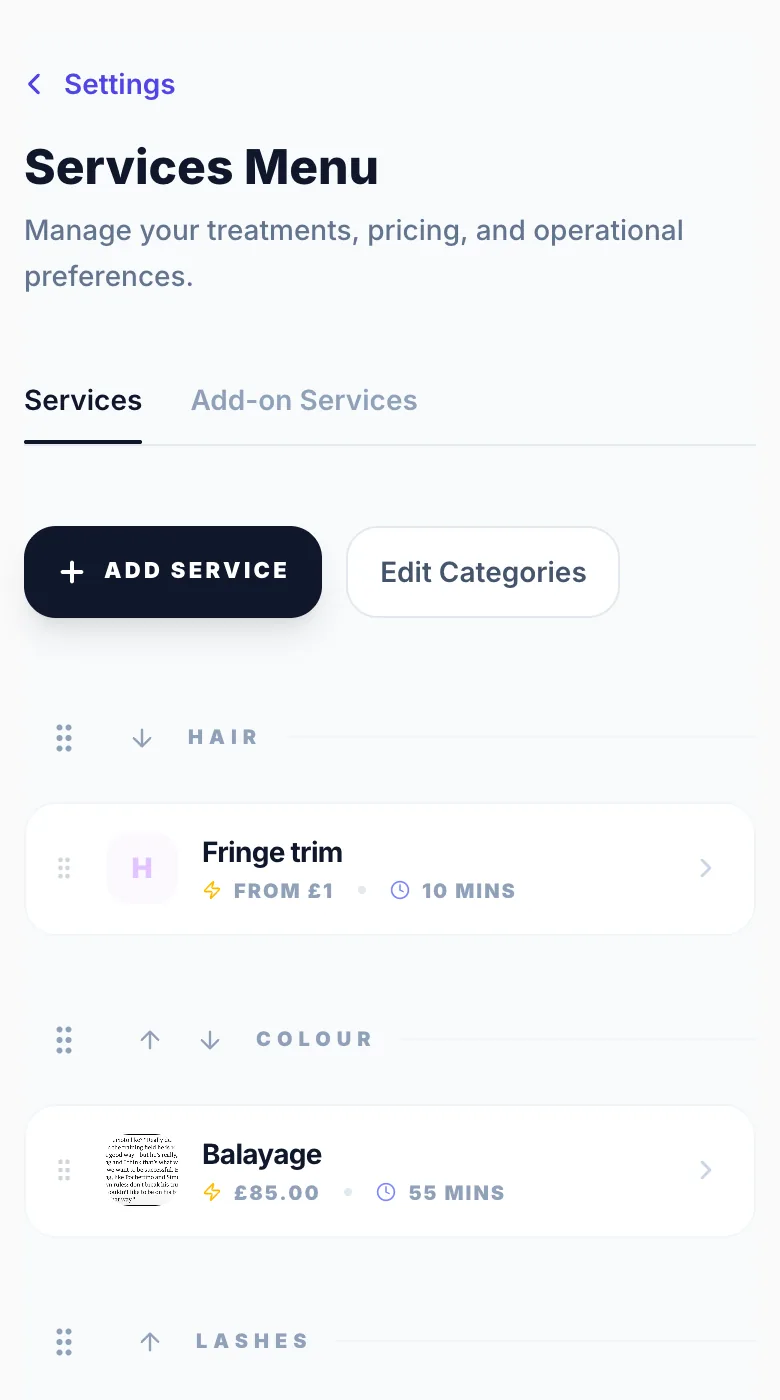
Go to Settings → Services Menu and click 'Add Service'. Fill in the name, price, duration, and category. Optionally add a description, colour, and up to 4 photos.
Service colour
Assign a colour to each service. It appears in your calendar view so you can instantly see what type of appointment each block is.
Service images
Add photos of your work for that service. These appear on your public booking page and help clients visualise what they're booking.
Service description
Explain what the service includes, any prep the client should do, or anything worth knowing. Displayed on the public booking page.
Saving
Click 'Save Changes' to save immediately. Changes go live on your public page straight away.
Version 1.0 · Updated 17 Nov 2026
Was this helpful?
More in Services & Extras
See all- Hiding a serviceHide a service from your public page without deleting it.
- Extras — add-ons clients choose at bookingExtras are optional add-ons clients can choose when booking, like nail art, a gel top coat or a conditioning treatment.
- Aftercare instructions and documentsAftercare lets clients see your aftercare advice and documents after their appointment, so you don't have to send it separately.
Still stuck?
Message us and a real person will get back to you. If you're logged in, Settings → Contact Us is quickest.
Not on Glamly yet?
Bookings, deposits, reminders and payments in one app for beauty pros. Try it free for 30 days — no card needed.