Group bookings
Group bookings let one client book for multiple people in a single session — for example, a parent booking for themselves and their children, or a couple booking together. All services run back-to-back in one continuous time block.
Enabling group bookings
Go to Settings → Rules and toggle on 'Allow group bookings'. This activates the feature for your business.
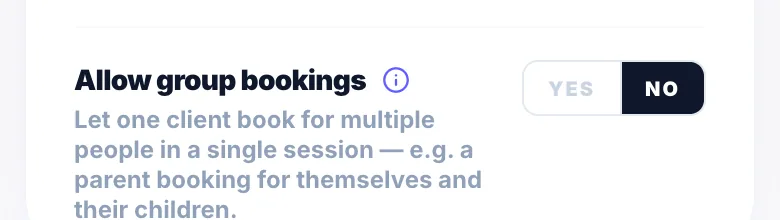
Per-client toggle
Once group bookings are enabled globally, the feature is on for all clients by default — including new clients booking for the first time. If you want to prevent a specific client from using group bookings, go to their profile and toggle 'Allow group bookings' off under their preferences. Clients with the toggle off will not see the group booking step during online booking.
Turning group bookings off and back on
If you disable group bookings globally and then re-enable them, each client's individual setting is preserved. Clients you previously turned off will remain off — the global toggle doesn't reset per-client preferences.
How the online booking flow works
After the client signs in during the booking process, if group bookings are enabled and the client is permitted, a new step appears. They can add participants — each with a name and their own service selection. All services stack back-to-back in one time slot with no buffer between participants.
Slot calculation
Glamly automatically calculates the total duration (your service + all participant services) and only shows time slots with enough space to fit the whole group. Your normal buffer between appointments still applies before and after the group booking — it just doesn't apply between participants within the group.
Manual bookings — adding participants
You can also create group bookings manually from the dashboard. Select a client, choose their service, then use the 'Group participants' section to add additional people, their services, and optional extras for each person.
Manual bookings — extras per participant
When creating a manual group booking, each participant can have one or more extras added alongside their service — for example, a gel top coat for one participant but not another. The total duration and cost update automatically to reflect each person's selection.
Conflict detection
When you add a participant to a manual booking and the new total duration would overlap with another appointment in the calendar, a warning appears. You can choose to proceed and allow the overlap, or go back and adjust.
Editing group bookings
Inside a confirmed booking's detail panel, the 'Group participants' section lets you add or remove participants and change their services. The booking duration, price, and deposit balance are recalculated automatically when you save.
Removing a participant (public manage page)
Clients can remove an additional participant from their booking via their manage link. The booking total and deposit balance are recalculated when a participant is removed.
Viewing group bookings
In your calendar, group appointments show 'Group booking · N people' instead of a service name. In your bookings list, each group appointment is labelled accordingly. Inside the booking detail, a 'Group booking' card lists each participant, their service, extras, and price.
Version 1.0 · Updated 17 Nov 2026
Was this helpful?
More in Bookings & Calendar
See all- Changing the calendar time slot intervalThe day view calendar uses a grid interval you can change: 5, 10, 15 (default) or 30 minutes.
- Changing the booking page time slot intervalThe booking page slot interval controls which start times clients can choose online.
- Abandoned bookings — tracking and re-engagementAn abandoned booking is when a client starts booking, a time is held for them, but they don't finish.
- Creating recurring appointmentsRecurring appointments let you book a repeating series for a client in one go — perfect for regular colour clients, weekly blowdries, or monthly treatments.
Still stuck?
Message us and a real person will get back to you. If you're logged in, Settings → Contact Us is quickest.
Not on Glamly yet?
Bookings, deposits, reminders and payments in one app for beauty pros. Try it free for 30 days — no card needed.