Moving an appointment by dragging it
Move an appointment by dragging it to a new time on the calendar, or to another day in week view.
How to move it
Press and hold the appointment until it lifts, drag it to the new time and let go. On a computer, click and drag. It snaps to your calendar's time slots. Check the new time and confirm with 'Move appointment'. If you hold and let go without moving, you get the usual quick actions instead.
Telling the client
When you confirm, choose whether to tell the client. They're told by WhatsApp or email, the same way they get their other messages. You can also ask them to accept the new time; it shows as pending until they do.
Choosing the default
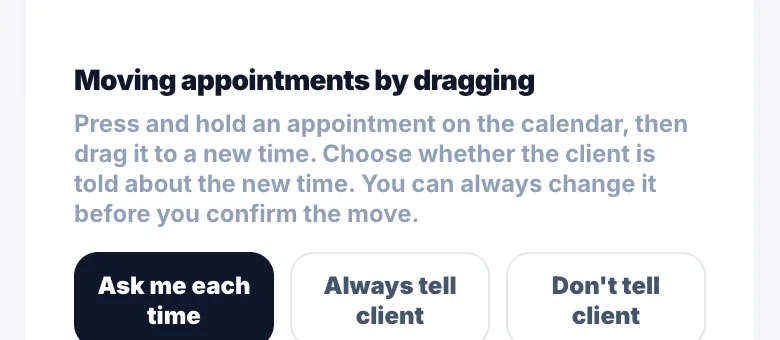
Go to Settings → Calendar View → Moving appointments by dragging and pick Ask me each time, Always tell client or Don't tell client.
Breaks and time off
Lunch, breaks and time off can be dragged too. For a break, choose whether the change is just for that day or every week. Every week changes your working hours.
What can't be moved
Cancelled, declined, completed and past appointments can't be dragged, and you can't drop one into the past. If the new time overlaps another booking or falls outside your hours, Glamly warns you, and you can still move it.
Version 1.0 · Updated 17 Nov 2026
Was this helpful?
More in Bookings & Calendar
See all- Booking window — how far ahead clients can bookThe booking window controls how far in advance clients can book.
- Minimum notice periodThe minimum notice period stops clients booking at very short notice.
- Buffer time between appointmentsBuffer time adds an automatic gap between appointments so you have time to clean up, prepare, or travel before the next client arrives.
- Booking Optimisation — avoiding unusable gapsBooking Optimisation decides which times clients are offered so your day doesn't fill up with gaps too short to sell.
Still stuck?
Message us and a real person will get back to you. If you're logged in, Settings → Contact Us is quickest.
Not on Glamly yet?
Bookings, deposits, reminders and payments in one app for beauty pros. Try it free for 30 days — no card needed.