Buffer time between appointments
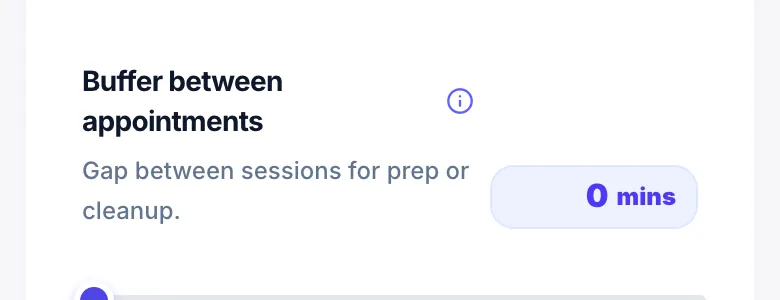
Buffer time adds an automatic gap between appointments so you have time to clean up, prepare, or travel before the next client arrives.
Where to set it
Go to Settings → Rules and find 'Buffer time'. Set the number of minutes.
Example
If a service is 60 minutes long and you have a 15-minute buffer, the next available slot after a booking starts 75 minutes later.
Travel time
If you do mobile appointments, you can set a separate 'Travel time' buffer for mobile services in Settings → Rules.
Version 1.0 · Updated 17 Nov 2026
Was this helpful?
More in Bookings & Calendar
See all- Booking Optimisation — avoiding unusable gapsBooking Optimisation decides which times clients are offered so your day doesn't fill up with gaps too short to sell.
- Out-of-hours bookingsOut-of-hours bookings let you accept appointments outside your regular opening hours — for example, evening cuts or weekend sessions — and charge a premium price for that flexibility.
- Group bookingsGroup bookings let one client book for multiple people in a single session — for example, a parent booking for themselves and their children, or a couple booking together.
- Changing the calendar time slot intervalThe day view calendar uses a grid interval you can change: 5, 10, 15 (default) or 30 minutes.
Still stuck?
Message us and a real person will get back to you. If you're logged in, Settings → Contact Us is quickest.
Not on Glamly yet?
Bookings, deposits, reminders and payments in one app for beauty pros. Try it free for 30 days — no card needed.