Recording cash and manual payments
Not every payment goes through Glamly. When a client pays you by cash, bank transfer or a card machine, before or after the appointment, record it on the booking. It then shows as paid and counts towards your takings.
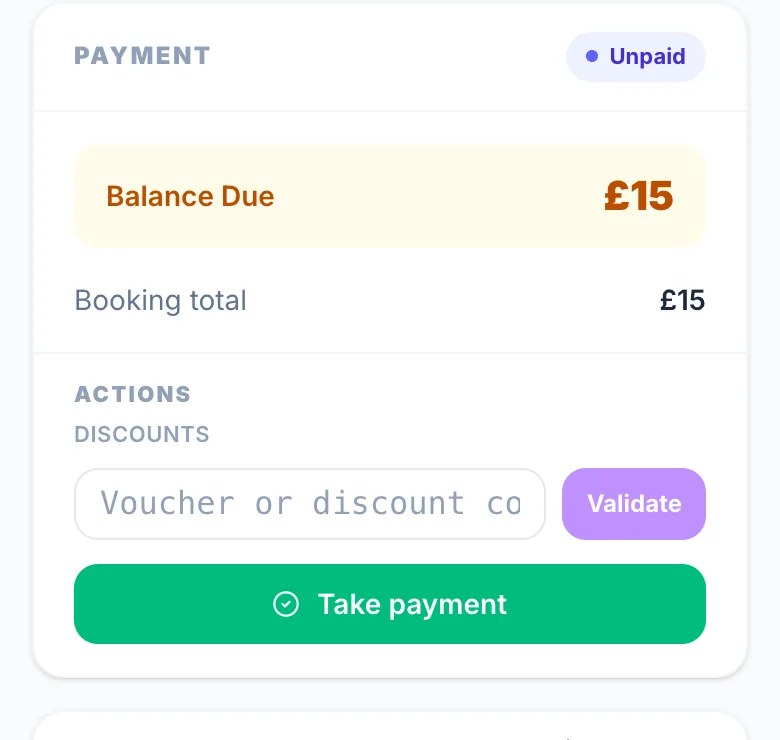
1. Open the booking and tap Take payment
Open the appointment from your diary. In the Payment section, tap Take payment. It's the green button, and it shows while money is still owed.
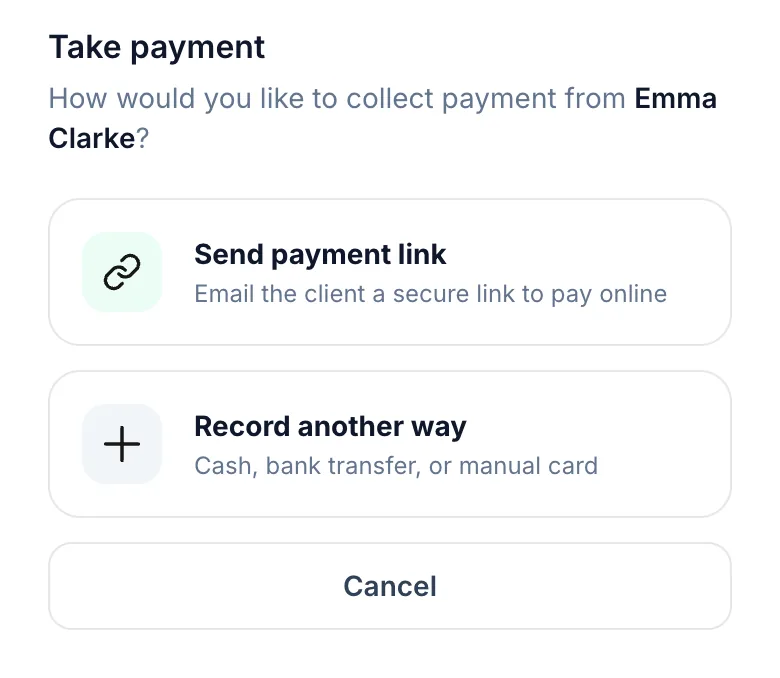
2. Choose Record another way
If a sheet asks how you'd like to collect payment, tap Record another way (Cash, bank transfer, or manual card). The sheet only appears when you also have Tap to Pay, payment links or a saved card. Otherwise Take payment goes straight to the next screen.
3. Pick the method and save
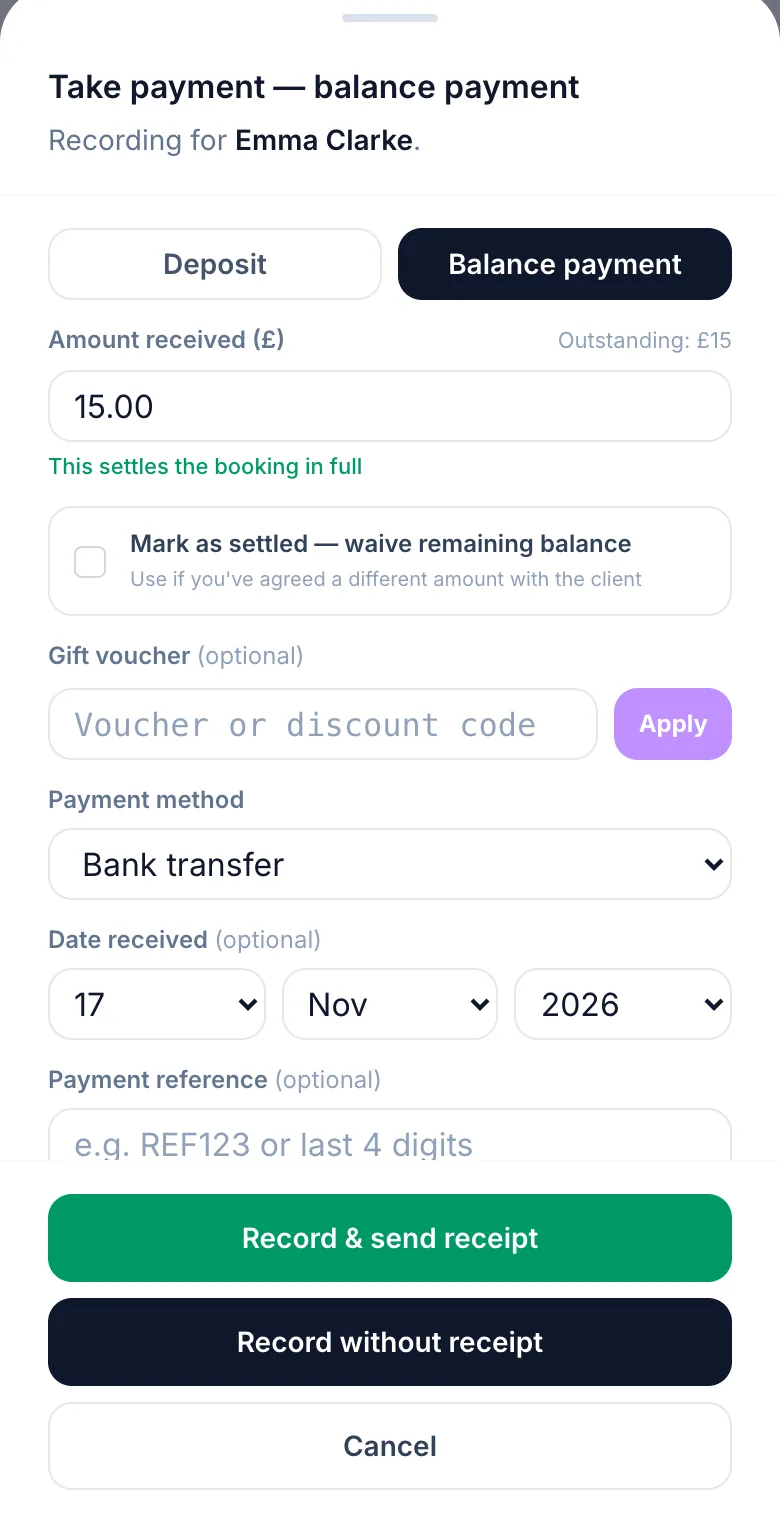
- Check the amount. It's filled in with what's still owed, so change it if they paid part of it.
- Choose the payment method: Cash, Bank transfer, Card (in person) or Other.
- For a bank transfer you can add the payment reference. If the money arrived on another day, set the date received.
- Tap Record & send receipt, or Record without receipt.
What happens next
The booking shows as paid, or shows what's left to pay, and the payment counts towards your takings. Every payment and refund is listed in the booking's Payment section, so you can see what was collected, when and how.
Deposit or balance
The screen picks Deposit or Balance payment for you, based on what's still owed. You can switch it if you need to.
Tips
Enter a tip in Tip received when you record the payment. Once a booking is paid, you can also tap Add tip in the Payment section and use the same options.
Agreed a lower price?
Tick Mark as settled — waive remaining balance. The rest won't show as owed.
Balance Due
While money is still owed, the Payment section shows the Balance Due in amber. It disappears once the booking is fully paid.
Overpayment prevention
You can't record more than is owed. Once the booking is fully paid, Take payment is hidden.
Version 1.1 · Updated 17 Nov 2026
Was this helpful?
More in Deposits & Payments
See all- Tap to Pay — take card payments on your phoneTap to Pay lets you take contactless card, Apple Pay and Google Pay payments on your phone in the Glamly app.
- Card on file and no-show chargesCard on file saves the client's card when they book, without charging it, so you can charge them if they don't turn up or cancel late.
- Pay later with Klarna and ClearpayWhen clients pay a deposit, a full payment or a payment link, Stripe can offer Klarna and Clearpay as well as cards, Apple Pay and Google Pay.
- A client paid — where's my money?When a client pays a deposit, a full payment, a payment link or by Tap to Pay, the money goes straight into your own Stripe account.
Still stuck?
Message us and a real person will get back to you. If you're logged in, Settings → Contact Us is quickest.
Not on Glamly yet?
Bookings, deposits, reminders and payments in one app for beauty pros. Try it free for 30 days — no card needed.