Setting a custom cancellation policy
You can control exactly what clients see as your cancellation policy on the booking checkout and their manage booking page.
Where to find it
Go to Settings → Rules and scroll to the 'Cancellation Terms' section.
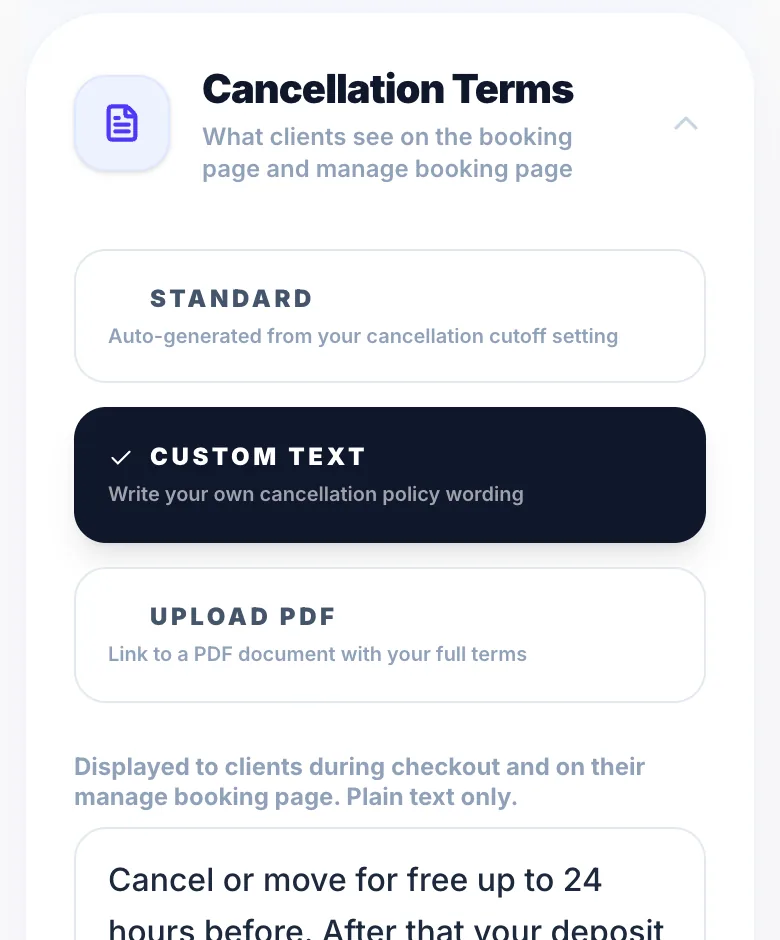
Standard
The default. Glamly generates the policy text automatically from your cancellation cutoff setting — for example, 'Please provide at least 48 hours notice'. No setup needed.
Custom text
Write your own wording. Useful if you have specific terms, exceptions for certain services, or want a more personal tone. The text appears directly on the booking page and manage booking page.
Upload PDF
Upload a PDF document (up to 10 MB). Clients see a 'View cancellation terms' link that opens your document. Ideal if you have formal terms drafted by a solicitor or want to keep detailed conditions separate from the booking flow.
Version 1.0 · Updated 17 Nov 2026
Was this helpful?
More in Cancellations & No-Shows
See all- Cutting down no-showsGlamly has several settings that protect you from no-shows. Use one or layer them up.
- Cancelling every appointment on one dayIll, closed or snowed in? Cancel all the day's appointments at once and every client is told why.
- How clients cancel a bookingClients cancel their booking using the manage link in their WhatsApp confirmation message — no need to contact you directly.
- How to cancel a booking as the businessYou can cancel any booking from your dashboard at any time.
Still stuck?
Message us and a real person will get back to you. If you're logged in, Settings → Contact Us is quickest.
Not on Glamly yet?
Bookings, deposits, reminders and payments in one app for beauty pros. Try it free for 30 days — no card needed.