Working from multiple locations
If you work from more than one salon or studio on different days — renting a chair at a second salon, splitting time between two addresses, or anything similar — Glamly's multiple locations feature lets you assign a different address to each working day. Clients always see the correct location.
Enabling multiple locations
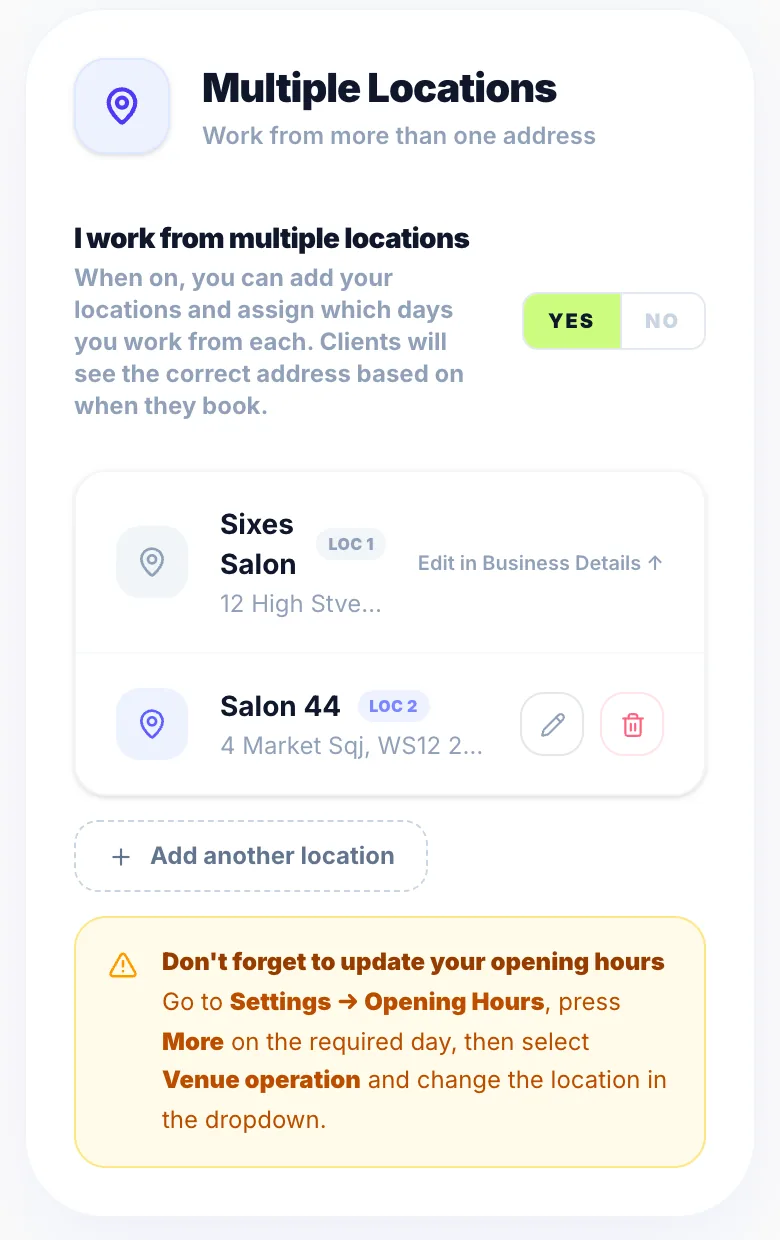
Go to Settings → Business Details and scroll to the Locations section. Toggle on 'I work from multiple locations'. Your original business address becomes Location 1 — your primary address. It can't be deleted.
Adding your extra locations
Click 'Add location' to add a second salon or studio. Give it a name (e.g. 'Studio 2', 'Salon at the Lanes') and a full address including postcode. You can add as many locations as you need and edit or delete them at any time using the icons next to each one.
Assigning a location to each working day
Go to Settings → Opening Hours. Each working day now has a Location dropdown. Select which location you work from that day. Days default to 'Primary location (Location 1)' if nothing is assigned.
What clients see
When a client picks a date assigned to Location 2 (or any other location), the correct address shows throughout — on the schedule step when choosing a date, in their booking confirmation, in WhatsApp and email reminders, and on the manage booking page. The address is saved at booking time so it stays accurate even if you later update a location's details.
Mobile days
Days set to mobile (you travel to the client) don't use the location system. On those days the location dropdown is hidden and clients see 'Mobile appointment — will travel to you' messaging instead of an address.
Deleting a location
Deleting a location removes it from the list and clears it from any working days it was assigned to — those days revert to your primary location automatically. Past appointments are never affected — the address was captured at the time of booking.
Version 1.0 · Updated 17 Nov 2026
Was this helpful?
More in Getting Started
See all- Processing time — colour and treatment servicesProcessing time lets you accurately represent services like colour treatments where the client sits while the colour develops — and you're free to work on someone else.
- Switching from another system — importing your dataIf you're moving to Glamly from another booking system (Fresha, Timely, a spreadsheet, or anything else), you don't have to start from scratch.
- Your business profileYour business profile details are collected during onboarding, so your name, business type, contact details and address are already saved.
- Managing your servicesYour initial services are set up during onboarding.
Still stuck?
Message us and a real person will get back to you. If you're logged in, Settings → Contact Us is quickest.
Not on Glamly yet?
Bookings, deposits, reminders and payments in one app for beauty pros. Try it free for 30 days — no card needed.