Managing your services
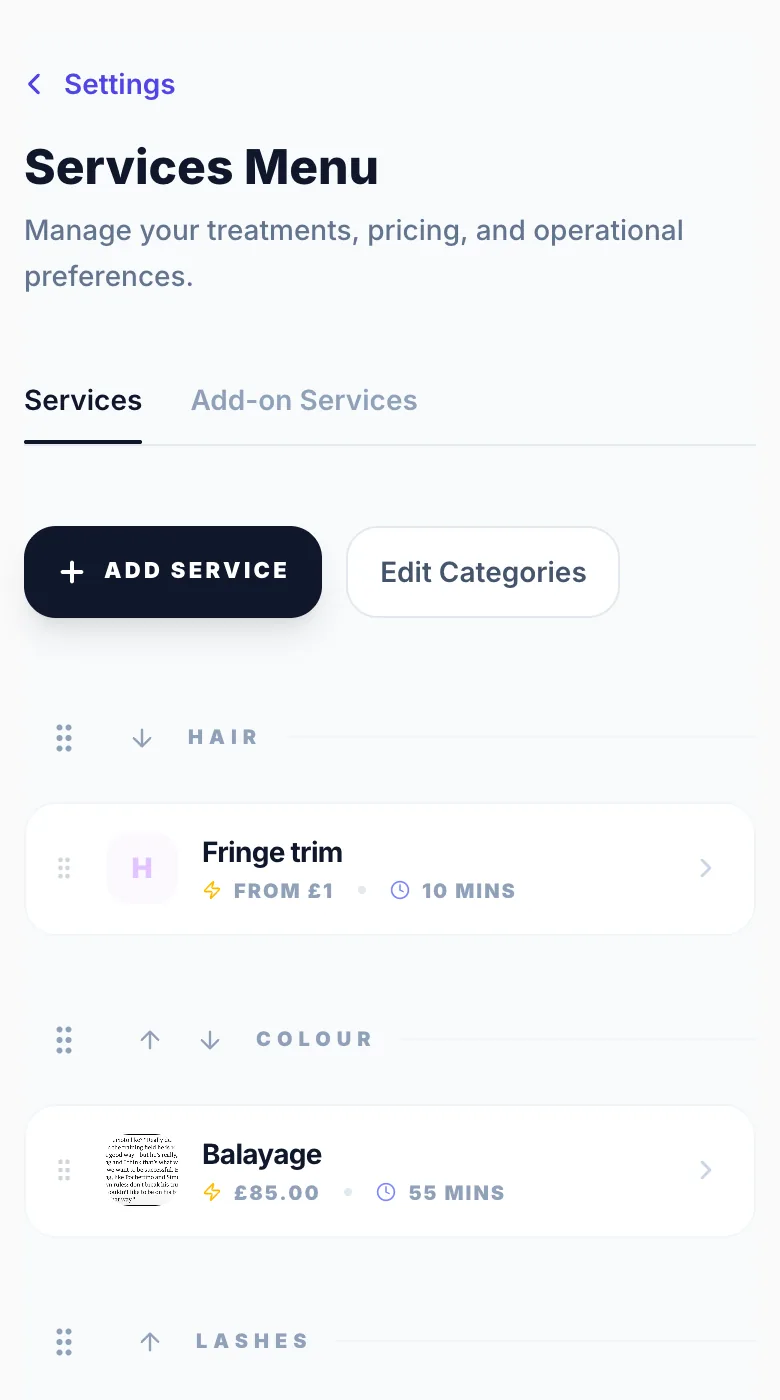
Your initial services are set up during onboarding. You can add more services, edit existing ones, or remove them at any time from Settings → Services Menu.
Adding a new service
Go to Settings → Services Menu and click 'Add Service'. Fill in the name, price (£), and duration (minutes). You can also add a description, colour, category, and up to 4 photos.
Editing an existing service
Click on any service to expand it. Update any details and click 'Save Changes'. Changes are live on your booking page immediately.
Service duration
Set the duration in minutes. This is how long the slot is blocked in your calendar — account for any clean-up or prep time you need between clients.
Service categories
Group your services into categories (e.g. Hair, Nails, Skin) to keep your booking page organised. Categories appear as labelled sections on your public page.
Deposit settings
You can require a deposit per service individually. Inside the service, toggle 'Require deposit' and set the percentage. The amount is calculated from the service price automatically.
Version 1.0 · Updated 17 Nov 2026
Was this helpful?
More in Getting Started
See all- Your booking link and public pageYour booking link is created during onboarding and is ready to share from day one.
- Hiding your address on your booking pageIf you work from home you don't have to show your address to everyone who visits your booking page.
- Adding appointment information for clientsTell clients what they need to know before they arrive: parking, which door to use, what to bring or how to prepare.
- Announcement banner on your booking pageShow a message at the top of your booking page: holiday closures, Christmas availability, new treatments or offers.
Still stuck?
Message us and a real person will get back to you. If you're logged in, Settings → Contact Us is quickest.
Not on Glamly yet?
Bookings, deposits, reminders and payments in one app for beauty pros. Try it free for 30 days — no card needed.