Your business profile
Your business profile details are collected during onboarding, so your name, business type, contact details and address are already saved. This guide covers where to update them if anything changes.
Updating business details
Go to Settings → Business Details to update your business name, phone, email or address, then tap Save.
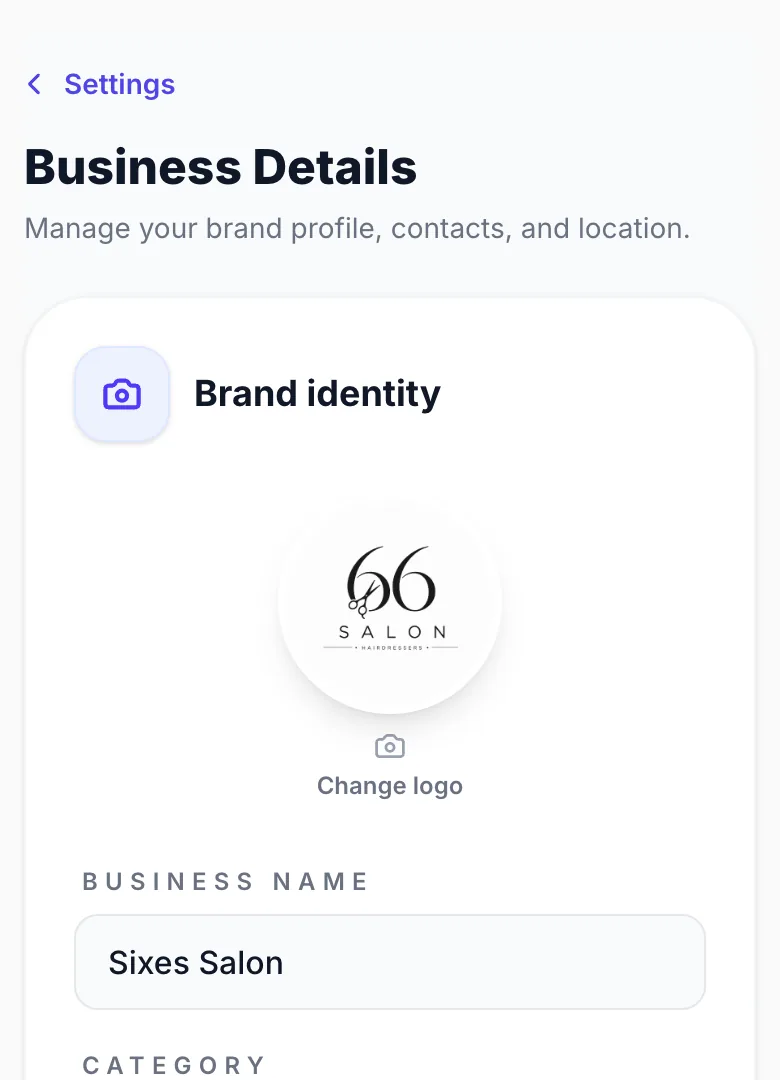
Updating your logo
Upload or change your logo in Settings → Business Details. It's shown on your booking page, in client emails and on your gift vouchers.
Business type
Your business type was chosen during onboarding. You can change it in Settings → Business Details.
Your own profile
Your personal name, profile photo and password are separate from the business. Change them in Settings → My Profile.
Version 1.0 · Updated 17 Nov 2026
Was this helpful?
More in Getting Started
See all- Managing your servicesYour initial services are set up during onboarding.
- Your booking link and public pageYour booking link is created during onboarding and is ready to share from day one.
- Hiding your address on your booking pageIf you work from home you don't have to show your address to everyone who visits your booking page.
- Adding appointment information for clientsTell clients what they need to know before they arrive: parking, which door to use, what to bring or how to prepare.
Still stuck?
Message us and a real person will get back to you. If you're logged in, Settings → Contact Us is quickest.
Not on Glamly yet?
Bookings, deposits, reminders and payments in one app for beauty pros. Try it free for 30 days — no card needed.