Out-of-hours bookings
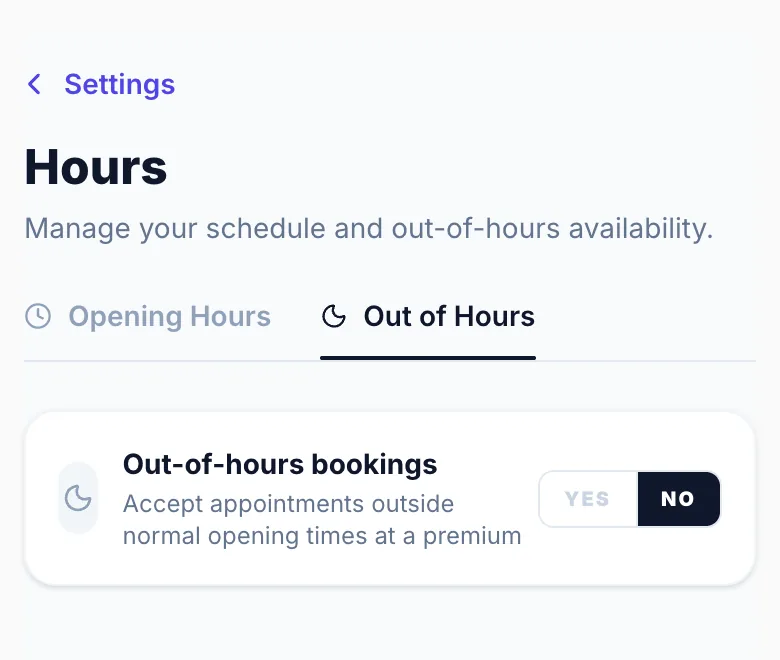
Out-of-hours bookings let you accept appointments outside your regular opening hours — for example, evening cuts or weekend sessions — and charge a premium price for that flexibility.
Enabling out-of-hours
Go to Settings → Opening Hours and scroll to the Out-of-Hours section. Toggle it on to enable the feature.
Defining your windows
Add one or more time windows for each day you want to accept out-of-hours bookings. You can add windows on days you're normally closed too — for example, a Sunday evening slot. Each window has a start and end time.
Setting the price
Choose your pricing type: Flat surcharge adds a fixed amount (e.g. +£10) to every booking. Percentage surcharge adds a percentage (e.g. +15%) to all service prices. Per-service lets you set a specific price per service — give you the most control. With per-service pricing you can optionally enable a catch-all fallback percentage that applies to any service without a specific out-of-hours price set.
Minimum advance notice
You can require clients to book out-of-hours slots at least a set number of hours in advance. For example, 12 hours gives you time to prepare for an evening appointment.
Approving each one
Turn on 'Require manual approval' in the Out-of-Hours section and out-of-hours bookings always go to Pending, even if your normal hours use instant booking. You confirm each one before it's locked in.
How it looks to clients
Out-of-hours slots appear in the same time grid as regular slots, highlighted in amber. The price difference is shown inline on each slot, so clients can always see what they're paying before they book.
Per-service price
If you're using per-service pricing, open each service in Settings → Services Menu to set its out-of-hours price. The field appears inside the service card when per-service OOH pricing is active.
Manual bookings
When you create a manual booking from the dashboard and select an out-of-hours time, the page automatically shows an amber notice with the surcharge and adjusted total.
Version 1.0 · Updated 17 Nov 2026
Was this helpful?
More in Bookings & Calendar
See all- Group bookingsGroup bookings let one client book for multiple people in a single session — for example, a parent booking for themselves and their children, or a couple booking together.
- Changing the calendar time slot intervalThe day view calendar uses a grid interval you can change: 5, 10, 15 (default) or 30 minutes.
- Changing the booking page time slot intervalThe booking page slot interval controls which start times clients can choose online.
- Abandoned bookings — tracking and re-engagementAn abandoned booking is when a client starts booking, a time is held for them, but they don't finish.
Still stuck?
Message us and a real person will get back to you. If you're logged in, Settings → Contact Us is quickest.
Not on Glamly yet?
Bookings, deposits, reminders and payments in one app for beauty pros. Try it free for 30 days — no card needed.