Hiding your address on your booking page
If you work from home you don't have to show your address to everyone who visits your booking page. Clients who book still get the full address.
How to set it up
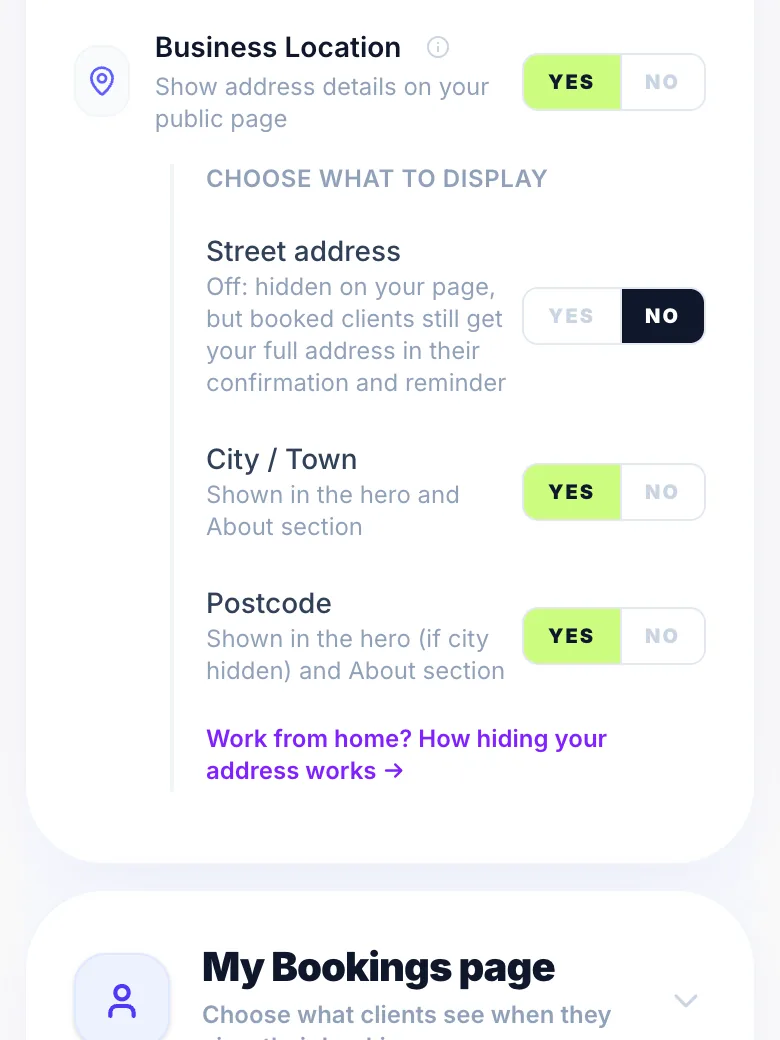
Go to Settings → My Booking Link → Display Controls and find Business Location. Turn it off completely, or keep it on and choose which parts to show: Street address, City / Town and Postcode. Changes save straight away.
Keep your full address filled in
Hiding your address on the booking page doesn't delete it. Keep it filled in under Settings → Business Details, because that's the address Glamly sends to clients who book.
What clients see
With Street address off, your street is hidden on the booking page. The map shows the general area, there's no Directions button, and your Google Maps link is hidden too. Once someone books, their confirmation, reminder, calendar invite and manage-booking page include your full address, so they know exactly where to come.
Turning Business Location off
No address shows on your booking page at all, not even your town. Booked clients still get your full address in their confirmation and reminder.
Mobile appointments
For mobile appointments the client gives you their address when they book, so yours isn't sent. If you offer both, clients booking a studio appointment get your studio address as above.
Tips
- Leave City / Town on. People like to see how local you are before they book.
- For more privacy, hide the postcode too. A full postcode can narrow you down to a handful of houses.
- Put parking and which door to use in your appointment information. See 'Adding appointment information for clients'.
Version 1.0 · Updated 17 Nov 2026
Was this helpful?
More in Getting Started
See all- Adding appointment information for clientsTell clients what they need to know before they arrive: parking, which door to use, what to bring or how to prepare.
- Announcement banner on your booking pageShow a message at the top of your booking page: holiday closures, Christmas availability, new treatments or offers.
- Stripe — accepting deposits and paymentsGlamly uses Stripe to take card payments: deposits, full payments, payment links, gift voucher sales and Tap to Pay.
- Things to check after onboardingOnboarding covers the essentials, but these are worth checking before you share your booking link.
Still stuck?
Message us and a real person will get back to you. If you're logged in, Settings → Contact Us is quickest.
Not on Glamly yet?
Bookings, deposits, reminders and payments in one app for beauty pros. Try it free for 30 days — no card needed.