Saved card secures bookings you make
Clients can agree once that their saved card secures the appointments you book for them, so they don't get a card request every time you book them in. It's perfect for regulars you book in from your chair, like a lash infill every three weeks.
Turning it on
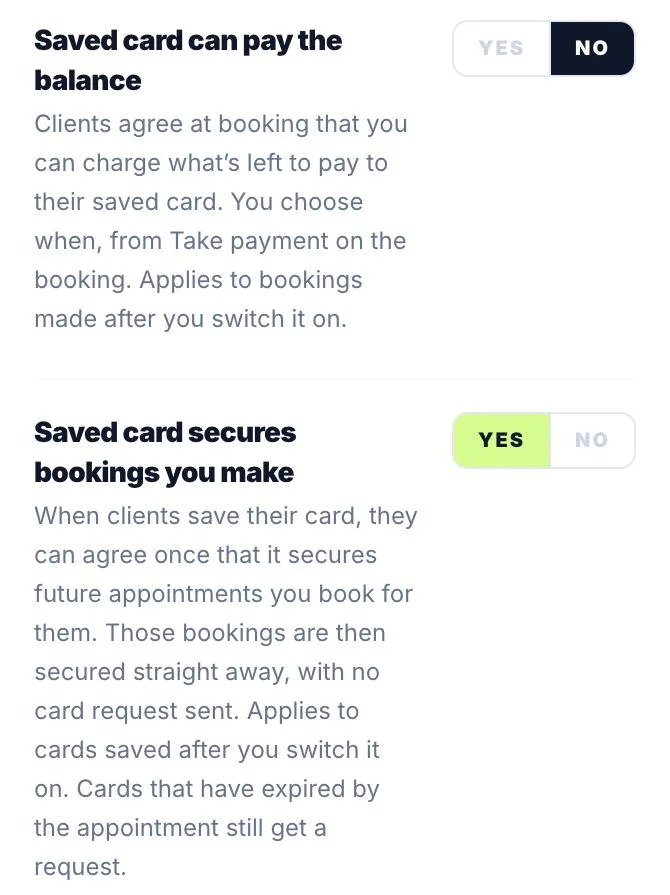
Go to Settings → Rules → Payments & tracking. Card on file needs to be on. Then set 'Saved card secures bookings you make' to YES. You'll find it just below 'Saved card can pay the balance'. It's off until you turn it on, and it only applies to cards clients save after you've switched it on.
What your client agrees to
When a client saves their card (at online checkout, from the card link on a booking you made, or when they pay a deposit link), they see an extra tick box under the usual card agreement:
'I also agree that [your business] can use this saved card to secure future appointments they book for me, under the same cancellation policy, so I don't need to enter my card again. Optional. You can ask them to remove your card at any time.'
It's unticked to start with and it's their choice. If they leave it unticked, everything works as before.
When you book them in
Once they've ticked it, every appointment you book for that client is secured with their saved card straight away, and no card request is sent. On the new booking screen, open Advanced options → Card on File and you'll see 'Secured with their saved Visa ending 4242' (with their own card's details). For repeat bookings there's a 'Use saved card' YES/NO choice, set to YES unless you change it.
Bookings already waiting for a card
If you've already booked them in and those bookings are waiting for a card, they're secured too as soon as the client ticks the box. Say you book six appointments: the client saves their card and ticks once on the first link, and all six are secured. You'll get an Activity note saying how many other upcoming bookings were secured.
If a booking still shows Awaiting card for a client who has agreed, open it and tap 'Use their saved Visa ending 4242' (with their card's details) to secure it.
Seeing or removing their card
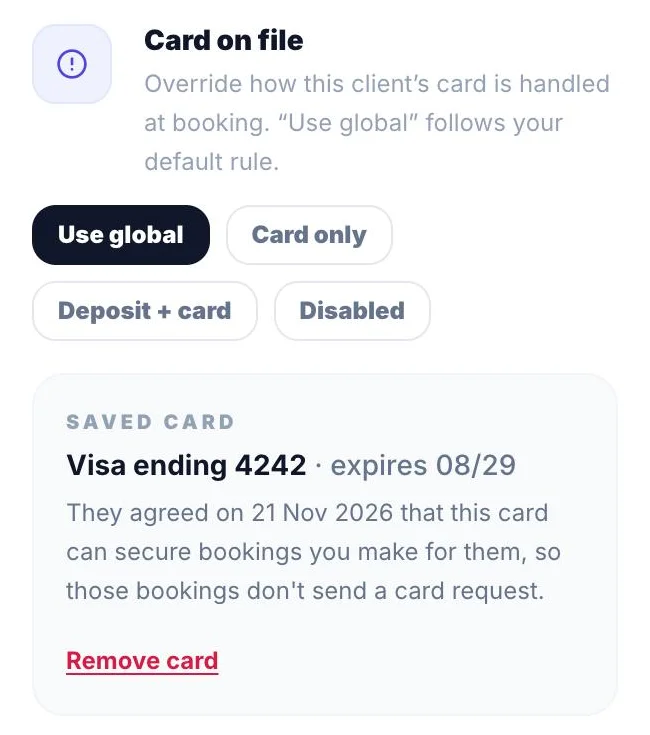
Open the client from Clients, tap the Settings tab and find the Card on file card. It shows their saved card and its expiry date, and the date they agreed it can secure bookings you make. Tap Remove card to take it off their profile. Bookings that already have the card keep it.
Nothing is charged
Securing a booking never charges the card. It can only be charged under your cancellation policy, for a no-show or a late cancellation, the same as any card on file.
When it doesn't apply
- Bookings that ask for a deposit: the client pays the deposit and saves their card in one step anyway.
- A saved card that will have expired by the appointment: that booking still sends the client a card request.
If their card changes
If their bank cancels or replaces their card, they can change it from their booking page. See 'Changing a client's saved card'.
Version 1.0 · Updated 21 Nov 2026
Was this helpful?
More in Deposits & Payments
See all- Changing a client's saved cardIf a client's bank cancels or replaces their card, they can swap in their new one from their booking page, or you can ask them to.
- Pay later with Klarna and ClearpayWhen clients pay a deposit, a full payment or a payment link, Stripe can offer Klarna and Clearpay as well as cards, Apple Pay and Google Pay.
- A client paid — where's my money?When a client pays a deposit, a full payment, a payment link or by Tap to Pay, the money goes straight into your own Stripe account.
- Your Earnings pageEarnings shows the money you've taken through Glamly: your Stripe balance, your next payout and every transaction.
Still stuck?
Message us and a real person will get back to you. If you're logged in, Settings → Contact Us is quickest.
Not on Glamly yet?
Bookings, deposits, reminders and payments in one app for beauty pros. Try it free for 30 days — no card needed.