Upgrading after your free trial (and which price you're on)
Your free trial lasts 30 days. Upgrade to keep your booking page open, and check your Upgrade page for the price that applies to your account. Everything you set up during your trial stays as it is.
Before your trial ends
Your dashboard shows how many days of your trial are left. Three days before it ends, Glamly emails you and sends an app notification. The button in the email opens your Upgrade page.
How to upgrade
Go to Settings → My Glamly Subscription and tap 'Upgrade now', or use the button in a trial email. Your Upgrade page shows your price. Tap 'Upgrade now' there and pay securely with Stripe. In the iPhone app, subscriptions are managed at glamly.uk, so the app opens it in your browser.
Which price am I on?
Your Upgrade page always shows the right price for your account.
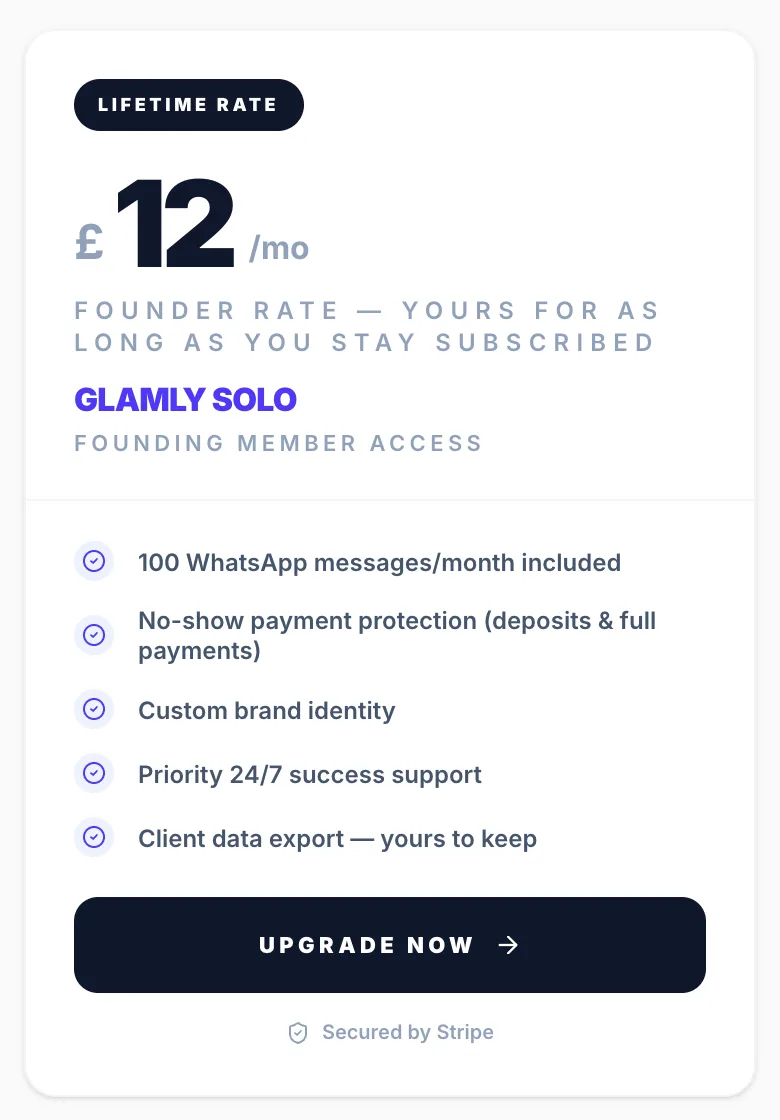
- Founder price, £12 a month: if your free trial was running on 31 October 2026, or you'd already subscribed, you keep £12 a month for as long as you stay subscribed. Your Upgrade page says 'Lifetime Rate' and 'Founder rate — yours for as long as you stay subscribed'.
- Standard price, £14.99 a month: for accounts that started their free trial from 1 November 2026.
Why the pricing page says £14.99
glamly.uk/pricing is for new sign-ups, so it always shows £14.99. If you're on the founder price, go by your Upgrade page, which is worked out from your own account. Trial emails open your Upgrade page, not the pricing page.
If your trial ends before you upgrade
Your booking page stops taking new bookings, but nothing is deleted. Your services, clients, bookings and settings are all kept, and you can still see your diary, bookings and clients. Things like marketing, vouchers and messages are locked until you upgrade. Upgrade at any time to switch everything back on.
After you've upgraded
Settings → My Glamly Subscription shows your plan, your next billing date and any bolt-ons, like extra WhatsApp messages.
Version 1.0 · Updated 24 Nov 2026
Was this helpful?
More in Getting Started
See all- Announcement banner on your booking pageShow a message at the top of your booking page: holiday closures, Christmas availability, new treatments or offers.
- Stripe — accepting deposits and paymentsGlamly uses Stripe to take card payments: deposits, full payments, payment links, gift voucher sales and Tap to Pay.
- Things to check after onboardingOnboarding covers the essentials, but these are worth checking before you share your booking link.
- Working from multiple locationsIf you work from more than one salon or studio on different days — renting a chair at a second salon, splitting time between two addresses, or anything similar — Glamly's multiple locations feature lets you assign a different address to each working day.
Still stuck?
Message us and a real person will get back to you. If you're logged in, Settings → Contact Us is quickest.
Not on Glamly yet?
Bookings, deposits, reminders and payments in one app for beauty pros. Try it free for 30 days — no card needed.